SSH Key Tutorial
This post will be a basic SSH key tutorial. In my Securing this WordPress blog from evil hackers! post, I recommended turning off password based SSH authentication and moving exclusively to SSH key based authentication. This post will go over the steps to set up SSH key authentication. The outline is:- Generate SSH public/private key pair
- Transfer the public key to the host in question
- manual method (Windows)
- automatic method (Linux/Mac)
- Verify the SSH key authentication is functional.
Step 1 – Generate the SSH key pair
The first thing we need to do is generate the SSH key pair. On all major OSes these days, this command is included (Windows finally joined the other “real” OSes in 2018 with full SSH support out of the box). We will be using ED25519, which is advised for basically anything build/updated since 2014.ssh-keygen -t ed25519This will start the generation process. I hit enter when it prompts for the location (it defaults to C:/Users/<user>/.ssh/id_<type> which is fine). I also hit enter again at the passphrase prompt twice because I don’t want to use a passphrase. Using a passphrase increase security but it can’t be used for any automated processes because it’ll prompt every time for the passphrase. This is the full output from the process:
C:\Users\Austin>ssh-keygen -t ed25519
Generating public/private ed25519 key pair.
Enter file in which to save the key (C:\Users\Austin/.ssh/id_ed25519): [press enter here]
Enter passphrase (empty for no passphrase): [press enter here]
Enter same passphrase again: [press enter here]
Your identification has been saved in C:\Users\Austin/.ssh/id_ed25519.
Your public key has been saved in C:\Users\Austin/.ssh/id_ed25519.pub.
The key fingerprint is:
SHA256:t0FIIk<snip.......................snip>6Rx4 austin@DESKTOP-3IPSAN3
The key's randomart image is:
+--[ED25519 256]--+
|o++++++ .        |
|*  + * o .       |
|o.o o   . .      |
| . .     .       |
|..... o S o      |
| . + .  .o.o..   |
|  = . o.+.+=o..  |
|   +.o.  +a..o   |
|  ..ooo o+...    |
+----[SHA256]-----+
Step 2 – Transfer the SSH public key
For Windows, they included all the useful SSH utilities except one: ssh-copy-id. This is the easy way to transfer SSH keys. It is possible to transfer the key without using this utility. For this SSH key tutorial, I will show both.Step 2a – Transfer SSH key (Windows)
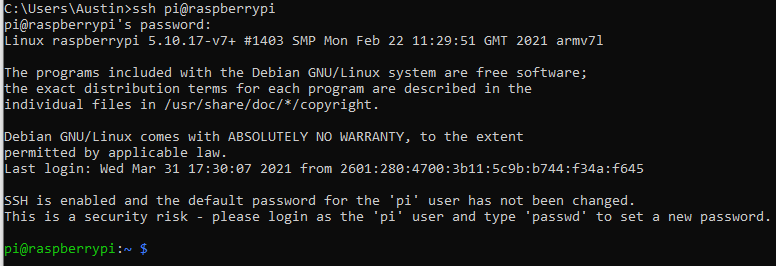
First we need to get the contents of the SSH public key. This will be done with the little-known type command of Windows. In Step 1, the file was placed at C:\Users\Austin\.ssh\id_ed25519 so that’s where we will read:C:\Users\Austin>type C:\Users\Austin\.ssh\id_ed25519.pub ssh-ed25519 AAAAC3NzaC1lZD2PT/VIK3KyYRliA0jgqmn7yzkVjuDiFK67Cio austin@DESKTOP-3IPSAN3The contents of the file are the single line of the SSH public key (starting with the type of key “ssh-ed25519” and then continuing with the key contents “AAAAC3” and ending with the username and host the key was generated on “austin@DESKTOP-3IPSAN3”). This is the data we need to transfer to the new host. I will first log onto the Raspberry Pi with the username/password combo from the default installation:
ssh pi@raspberrypiI am now logged into the Pi:
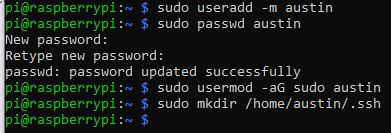
# create user austin with home directory (-m means create the home directory)
sudo useradd -m austin

# set the password for user austin
sudo passwd austin

# add user austin to sudo group
sudo usermod -aG sudo austin

# make the .ssh directory for user austin
sudo mkdir /home/austin/.ssh
sudo nano /home/austin/.ssh/authorized_keysIn this file, paste (by right-clicking) the single line from the id_ed25519 file:

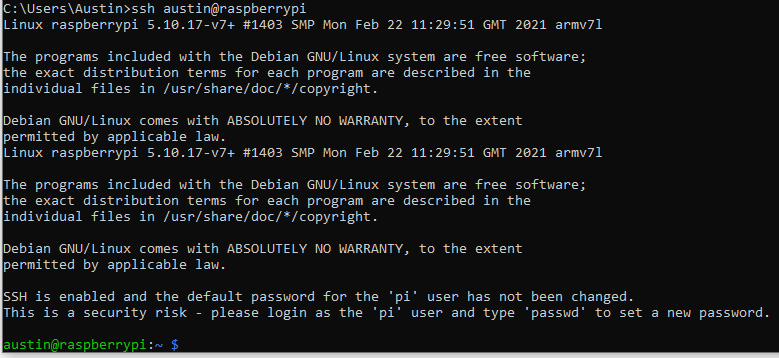
sudo chown -R austin:austin /home/austin/.sshNow we can test. From the machine that generated the SSH key, SSH to the target with the new user specified:
ssh austin@raspberrypiYou should get in without having to type a password!
Step 2b – Transfer SSH key (Linux)
This is much easier. The ssh-copy-id utility does what we just did in a single command.# make sure you've already generated keys on your Linux/Mac machine ssh-copy-id austin@raspberrypi
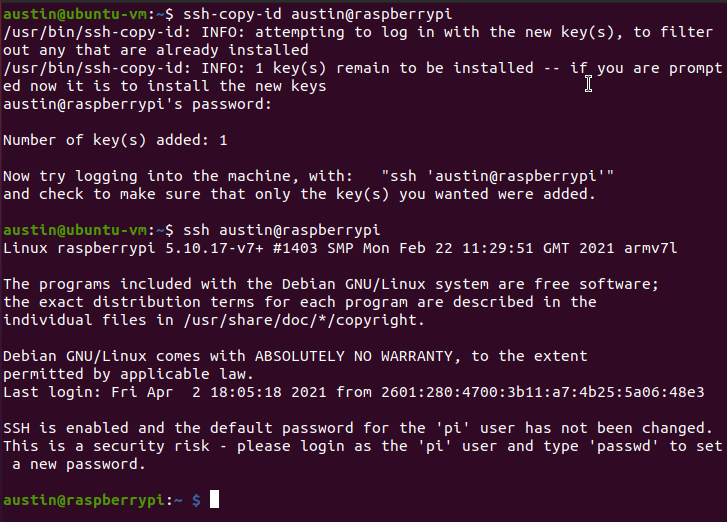
Step 3 – Verify
We did this at the end of each of the other methods.User creation script
This is the script I use on any new Linux virtual machine or container I spin up. It updates packages, installs a few things, sets the timezone, does all the user creation stuff and sets the SSH key. Lastly, it changes the shell to bash. Feel free to modify this for your own use. It is possible to copy the data from /etc/shadow so you don’t have to type in the password. I haven’t got that far yet.apt update apt upgrade -y apt install -y net-tools sudo htop sysstat git curl wget zsh timedatectl set-timezone America/Denver useradd -m austin passwd austin adduser austin sudo usermod -aG sudo austin usermod -aG adm austin groups austin mkdir /home/austin/.ssh touch /home/austin/.ssh/authorized_keys echo 'ssh-rsa AAAAB <snip> bhgqXzD austin@EARTH' >> /home/austin/.ssh/authorized_keys chown -R austin:austin /home/austin/.ssh usermod -s /bin/bash austin
Disclosure: When you click on links to various merchants in this post and make a purchase, this can result in this site earning a commission. Affiliate programs and affiliations include, but are not limited to, the eBay Partner Network.