Introduction to the Wheel Options Trading Strategy
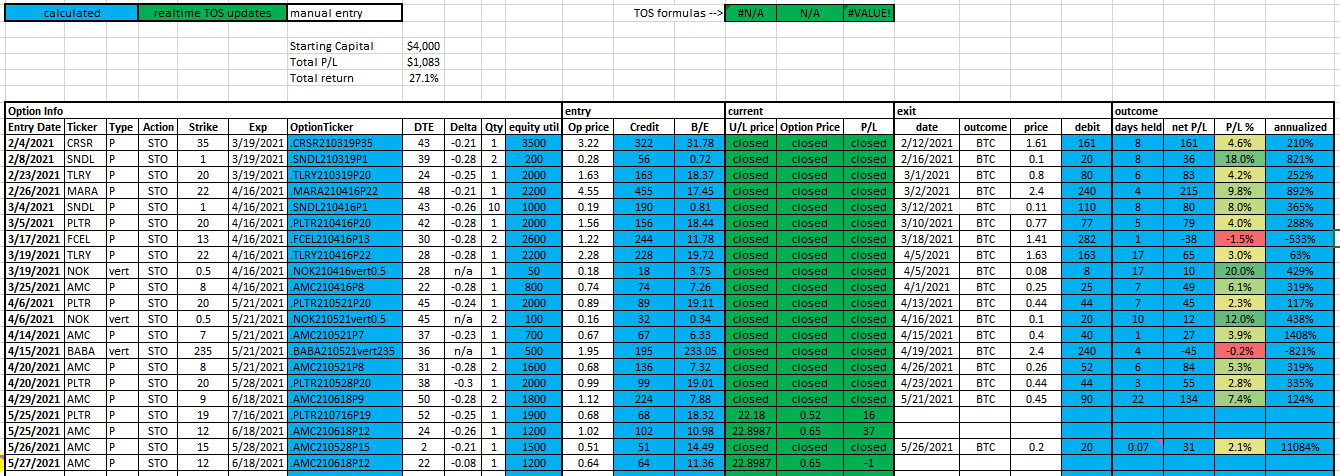
More to come here later. Getting this post up so I can put links to the Wheel Options Trading Strategy tracker itself as requested by r/ThetaGang as well as the ThinkOrSwim reference.
I put together a YouTube video going over this tracker and how it works – https://youtu.be/aSnyv3jbtuA. Watch the video then come back here to download the tracker itself (download link at the bottom of the post).
My Excel based ThetaGang tracking spreadsheet
In short, this trading strategy to to sell cash secured puts on tickers you wouldn’t mind owning. As theta (time) goes on, the options price decreases (with everything else held constant) so you can buy back the put at a lower price. This is a neutral to bullish options strategy. It should not be used if you are bearish on a ticker.
I’ve been trying to come up with “the next big thing” in terms of apps for quite some time. I may finally have an idea worth coding. To do so requires that I actually know how to code it (duh). For smartphones, I started with Android like any self-respecting nerd would. But after some time, I realized I loved the Apple design, features, and overall “feel” and all the Android hacks and ads and reliance on Google made me want to switch. My first iPhone was the iPhone 5S and I was hooked. I now have an iPhone 11. This means I need to learn Swift, which is the newest Apple iOS programming language.
Stanford CS193p
Someone on the Swift sub-Reddit posted a link to some YouTube lecture videos by Paul Hegarty, a Stanford Computer Science professor. He speaks really well. I know how to program reasonably well in a few other languages but Swift never “clicked” for me. He is straightening things out for me so I can finally learn Swift. The lectures are for CS193p Spring 2021 and should be released twice a week, which is a perfect speed for me to pick things up. I’m already caught up through the 2nd lecture, with the code to match.
Documenting “Memorize”
The app we’re developing in the lectures is called “Memorize” and it basically the card flipping/matching game that many of us played in childhood. I plan to document my version here on austinsnerdythings.com. I was thinking of turning this into a game for Poppy at some point.
Progress after Lecture 2
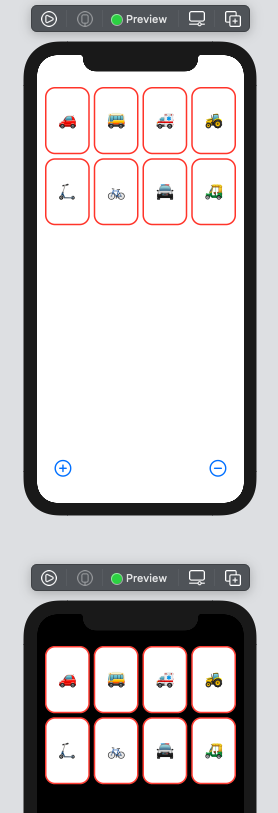
After lecture 2, I have an app that generates “cards” on demand (using vehicle emojis), puts them in a decent layout, and you can add/subtract cards as desired. Learning Swift via this method will be super nice.
Without further ado (I realized this is becoming like recipe blogs, where there is an unnecessarily long intro before the content), here is the code after the end of lecture 2 (including the 24 vehicles snippet), but before any of the assignment stuff:
//
//  ContentView.swift
//  Memorize
//
//  Created by Austin from austinsnerdythings.com on 5/25/21.
//
import SwiftUI
struct ContentView: View {
    var emojis = ["?","?","?","?","?","?","?","?","?","?","?","?","?","✈️","?","?","?","?","?","?","?","?","?","?"]
    @State var emojiCount: Int = 4
    var body: some View {
        VStack {
            ScrollView {
                LazyVGrid(columns: [GridItem(.adaptive(minimum: 80))]){
                    ForEach(emojis[0..<emojiCount], id: \.self) { emoji in
                        CardView(content: emoji)
                            .aspectRatio(2/3, contentMode: .fit)
                    }
                }
            }
            .foregroundColor(.red)
            Spacer()
            HStack {
                add
                Spacer()
                remove
            }
            .font(.largeTitle)
            .padding(.horizontal)
        }
        .padding()
    }

    var remove: some View {
        Button {
            if emojiCount > 1 {
                emojiCount -= 1
            }
        } label: {
            Image(systemName: "minus.circle")
        }
    }

    var add: some View {
        Button {
            if emojiCount < emojis.count {
                emojiCount += 1
            }
        } label: {
            Image(systemName: "plus.circle")
        }
    }
}
struct CardView: View {
    var content: String
    @State var isFaceUp: Bool = true

    var body: some View {
        ZStack {
            let shape = RoundedRectangle(cornerRadius: 20)
            if isFaceUp {
                shape.fill().foregroundColor(.white)
                shape.strokeBorder(lineWidth: 3)
                Text(content).font(.largeTitle)
            } else {
                shape.fill()
            }
        }
        .onTapGesture {
            if isFaceUp == true {
                isFaceUp = false
            } else {
                isFaceUp = true
            }
        }
    }
}
struct ContentView_Previews: PreviewProvider {
    static var previews: some View {
        ContentView()
            .preferredColorScheme(.light)
        ContentView()
            .preferredColorScheme(.dark)
    }
}
Screenshots
XCode preview of light and dark themesPreview in the iPhone 11 simulator
What’s next
There is an assignment after lecture 2. I need to do that next. I wonder if Professor Hegarty will grade it for me?
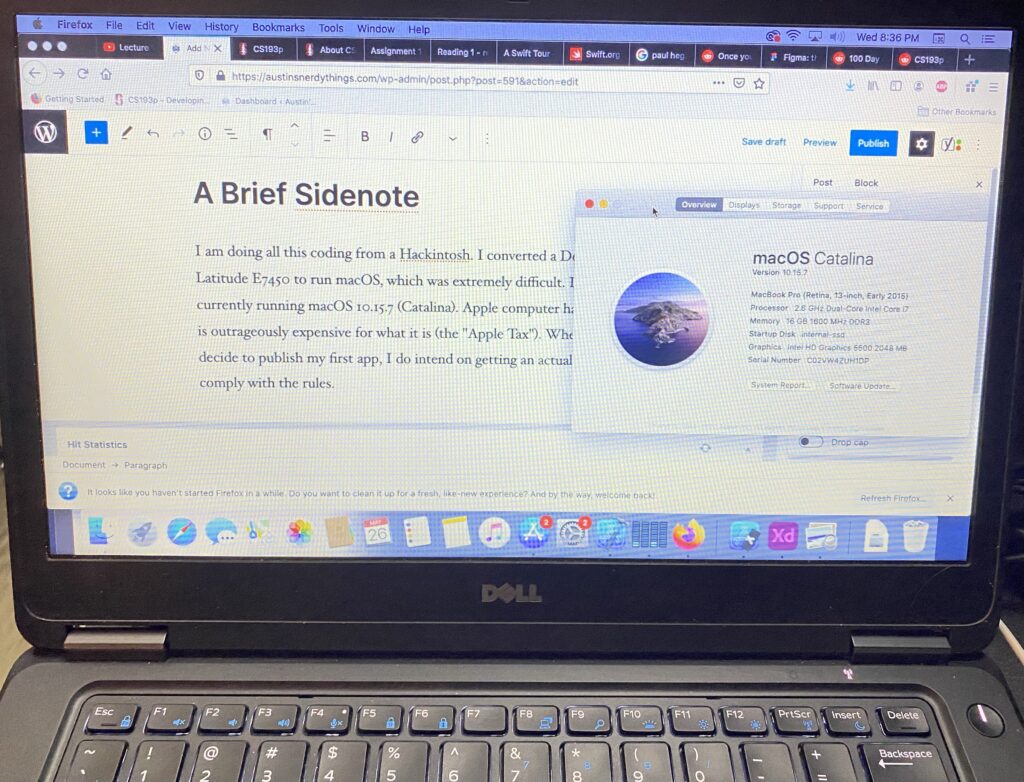
I am doing all this coding from a Hackintosh. I converted a Dell Latitude E7450 to run macOS, which was not easy. It is currently running macOS 10.15.7 (Catalina). Apple computer hardware is outrageously expensive for what it is (the “Apple Tax”). When I decide to publish my first app, I do intend on getting an actual Mac to comply with the rules. Pics or it didn’t happen:
Dell Latitude E7450 running macOS Catalina 10.15.7
In short, we set up a Python script that listens on port 80 for data coming from the Ambient Weather base station. It then takes the data and publishes it to various MQTT topics. We can subscribe to those topics to receive new data as soon as it arrives.
Available Data
I’ll re-post the list of available data/topics from my last post:
Topic
Value
Comment
weather/ws-2902c/PASSKEY
aa:bb:cc:dd:ee:ff
MAC address
weather/ws-2902c/dateutc
5/15/2021
date
weather/ws-2902c/tempinf
70.7
temp at the base station
weather/ws-2902c/humidityin
36
humidity at the base station
weather/ws-2902c/baromrelin
29.675
adjusted barometric pressure (in Hg)
weather/ws-2902c/baromabsin
24.531
absolute barometric pressure (in Hg)
weather/ws-2902c/tempf
66.2
temp at the weather station
weather/ws-2902c/battout
1
battery status at the weather station?
weather/ws-2902c/humidity
26
humidity at the weather station
weather/ws-2902c/winddir
207
wind direction in degrees azimuth
weather/ws-2902c/windspeedmph
0.2
wind speed
weather/ws-2902c/windgustmph
1.1
wind gust (shows peaks between updates)
weather/ws-2902c/maxdailygust
3.4
max daily wind gust
weather/ws-2902c/hourlyrainin
0
hourly rain fall
weather/ws-2902c/eventrainin
0
event rain fall (resets after 24 hours of no rain)
weather/ws-2902c/dailyrainin
0
daily rain fall
weather/ws-2902c/weeklyrainin
0
weekly rain fall
weather/ws-2902c/monthlyrainin
0
monthly rain fall
weather/ws-2902c/totalrainin
0
total rain fall since power on?
weather/ws-2902c/solarradiation
697.92
solar radiation in watts per square meter
weather/ws-2902c/uv
6
UV intensity index
weather/ws-2902c/batt_co2
1
?
table showing available data topics from our Ambient Weather WS-2902C weather station
This is a lot of data. How much/little you want to use is up to you! I believe I added every topic to my Home Assistant so they’d would be available if I ever wanted to use them.
Adding the MQTT topics to Home Assistant
If you don’t have the MQTT line in your base configuration, make sure you add it. I also am using secrets here so it goes and grabs the broker IP address from my secrets file.
For my configuration.yaml file, showing the relevant lines (MQTT sensors and the sensor file)
The way the secrets file works means it looks like this in configuration.yaml:
mqtt:
  broker: mqtt.home.fluffnet.net
If you haven’t worked with .yaml in Home Assistant before, it is very picky about spacing. Ensure the spacing is correct (usually 2 spaces per indentation).
With the MQTT line added, we can turn to the sensors file (sensors.yaml). This is where the magic happens! I’ve only added a subset of the topics:
With those lines added to the sensor.yaml file, restart Home Assistant. I love Home Assistant but needing to restart it for basically any configuration change is a huge pain.
Adding the new Ambient Weather WS-2902C sensors to your Home Assistant screens
With the new sensors activated, you can add them to any of your Home Assistant pages!
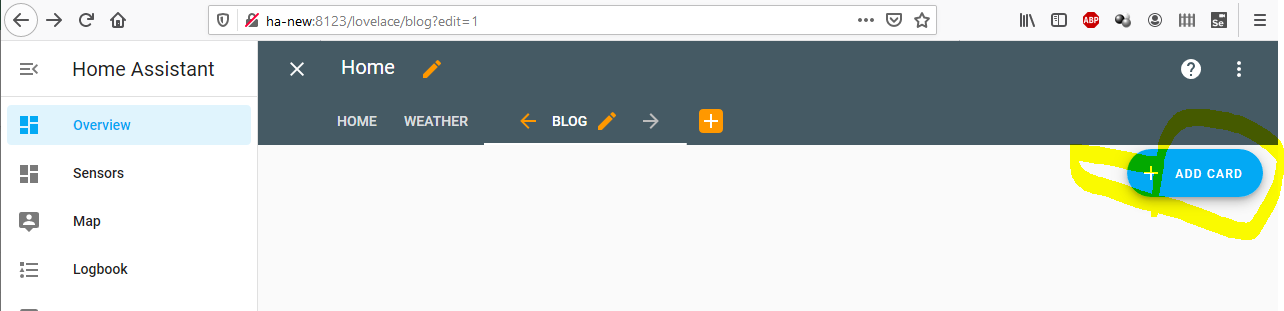
First click the edit button then Add Card:
home assistant screenshot to add card
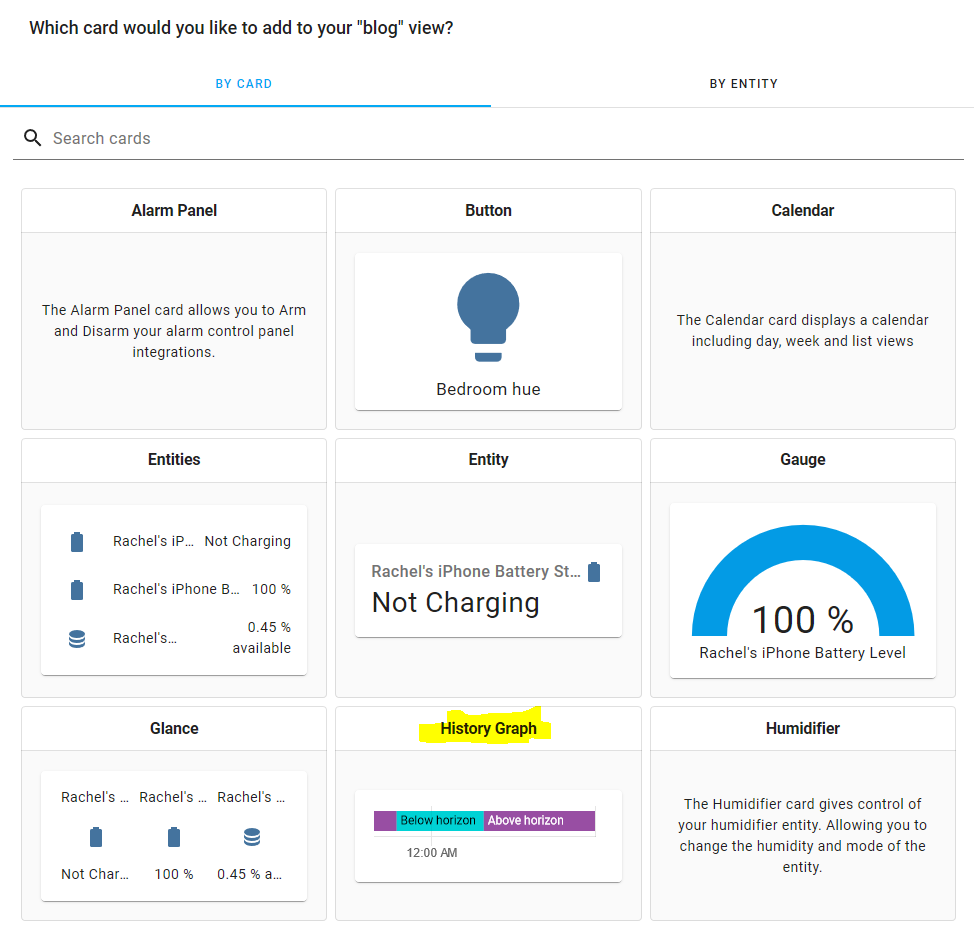
Next up we need to select what kind of card we want to add. For most of these, they’re time series, so History Graph will be the best choice. I do not know why Home Assistant is recommending the sun position in this screenshot.
select History Graph
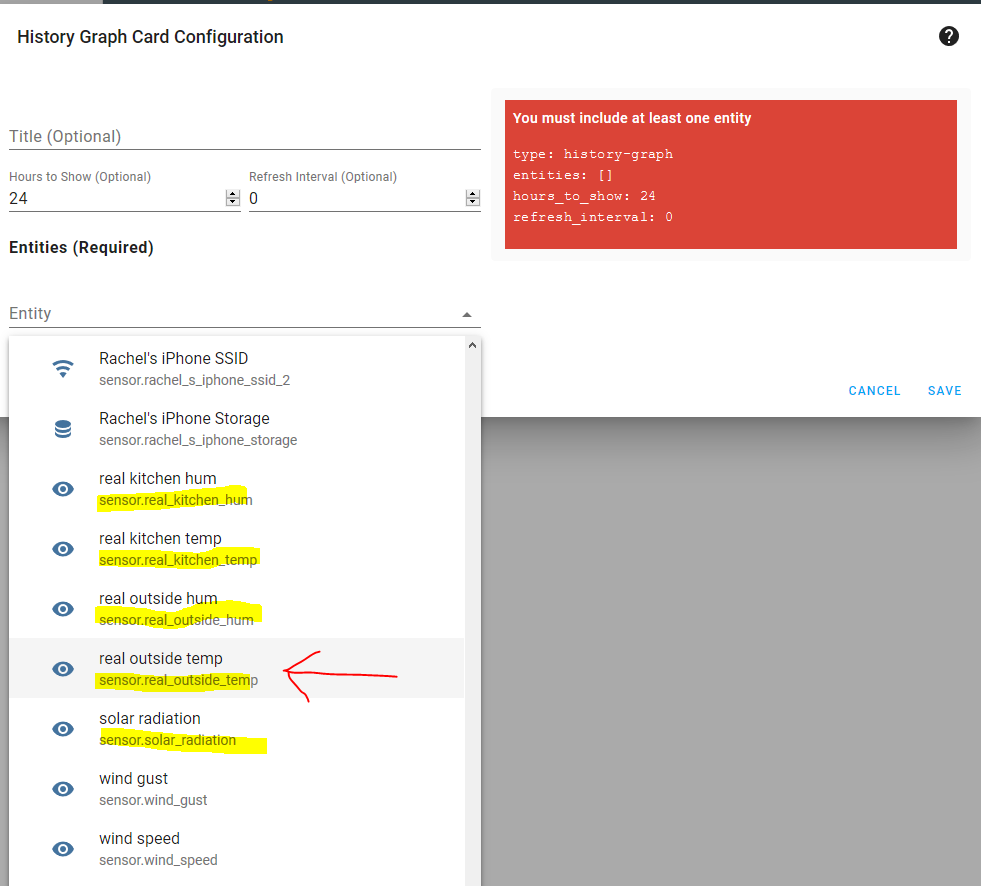
Now that the History Graph is selected, we can pick any of the new sensors we added in the entity drop down. In this screenshot we see most of what I added. The others are sorted elsewhere (there are 100+ entities available in my entities drop down).
New sensors available to add so we can view data from the WS-2902C60 means it will refresh every minute (60 seconds)
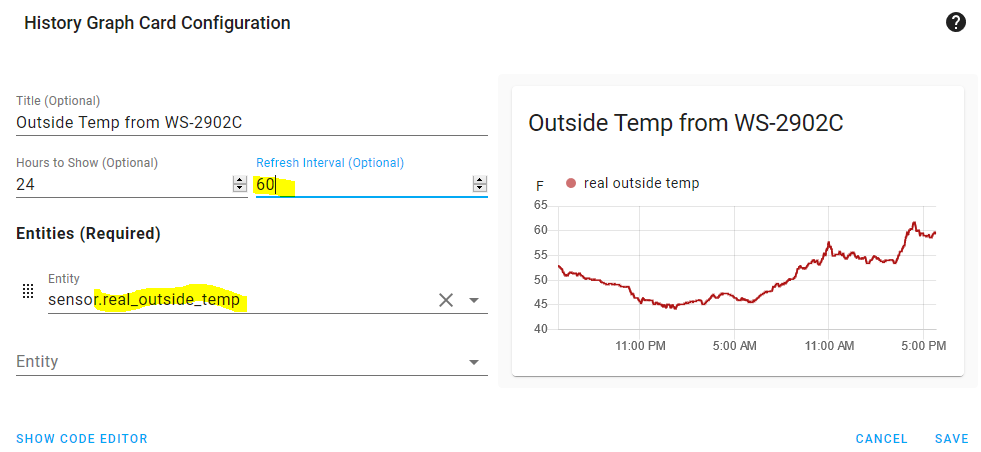
With sensor.real_outside_temp selected, I added 60 for the refresh interval, which means the graph will refresh itself every 60 seconds.
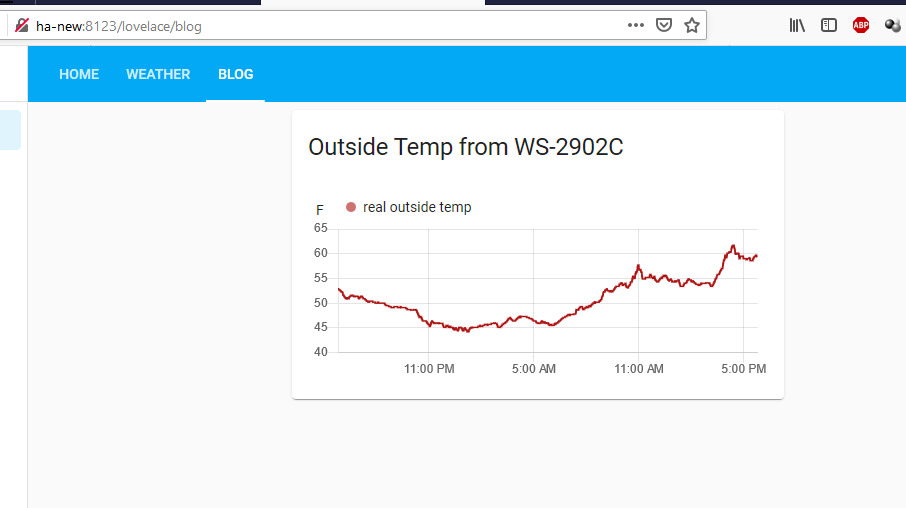
Now the graph is added to the page! You can repeat with all the other sensors you want to view. In the below screenshot, we have successfully added the outside temperature from the Ambient Weather WS-2902C to Home Assistant.
My full weather tab
I’ve added a number of sensors from my Ambient Weather WS-2902C to my Home Assistant. Below you can see I have solar radiation, daily rain, real outside humidity, real outside temp (I have another sensor labeled “outdoor temp” that is a floating sensor that is no longer outdoors), and the wind data. I also have the badges up top with just the current numeric value. You can add more or less, it’s totally up to you!
Conclusion
With this series, we have connected the Ambient Weather WS-2902C to our own Linux container to read the data, publish it to MQTT, and then view it in Home Assistant. I hope you’ve found this helpful!
Disclosure: When you click on links to various merchants in this post and make a purchase, this can result in this site earning a commission. Affiliate programs and affiliations include, but are not limited to, the eBay Partner Network.
eBay affiliate disclosure: Links labeled “eBay affiliate link” lead to eBay. As an eBay Partner, I may earn a commission if you make a purchase.
Update
As of 5/13/2021, I have everything up and running! My DIY solar system with battery backup has produced 5.9 kWh over the last few days. It has been very wet and rainy this spring here in the Front Range of the Rockies and I don’t think we’ve had a full day of sunshine in a couple weeks. In terms of dollars, that 5.9 kWh is worth $0.649. Not much, but knowing I can power the whole house for 6 hours (based on average consumption) is a pretty good feeling. Check out my last post for some detail on how I got the battery bank set up – DIY Solar System with battery backup update.
Battery bank
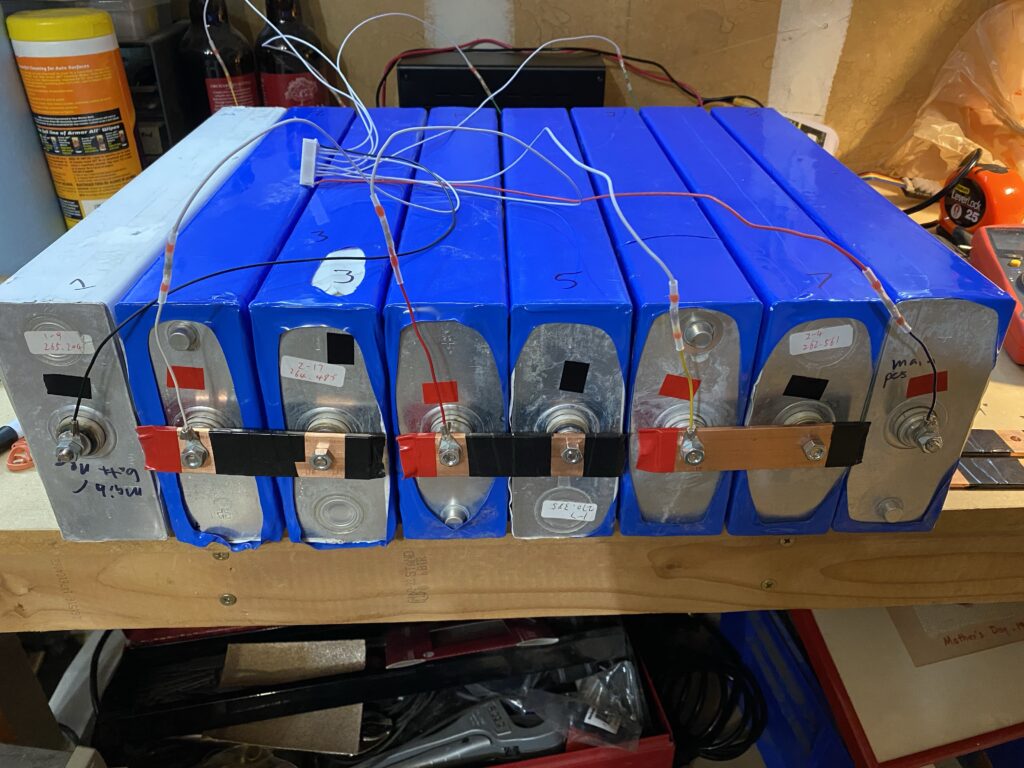
The battery bank has performed great so far. I am in the process of doing a full discharge test. These cells did each come with a discharge test sheet from Battery Hookup, all showing more than 260Ah (most around 262Ah). Total for the batteries was $1082.
8x260Ah LiFePO4 cell battery bank ready for BMS
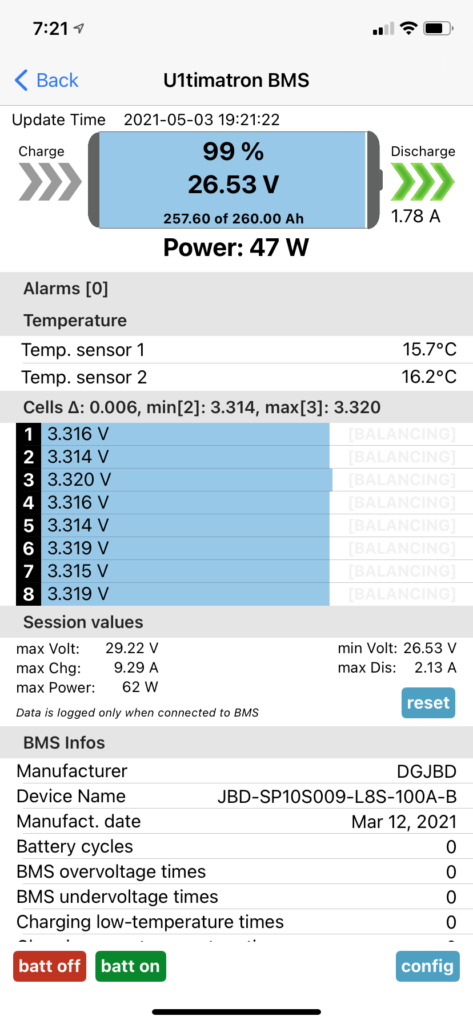
Under discharge in the flat part of the curve, the cells are extremely close in voltage. Below is a screenshot of my BMS app (XiaoxiangBMS, which is a super handy app. the fastest I’ve ever spent $6 on the pro version of an app) showing minor discharge current and the cells are within 6 millivolts of each other. It really doesn’t get much better than that.
BMS app (I am not creative enough to name my BMS the U1timatron) showing closely matched cell voltages during discharge
BMS
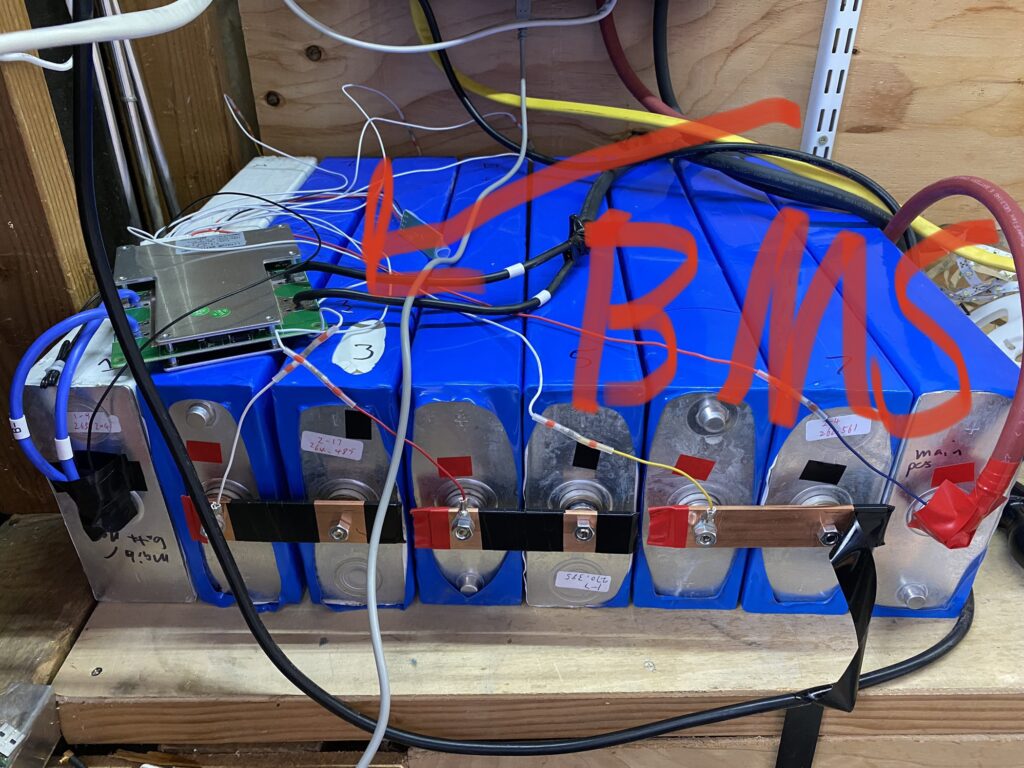
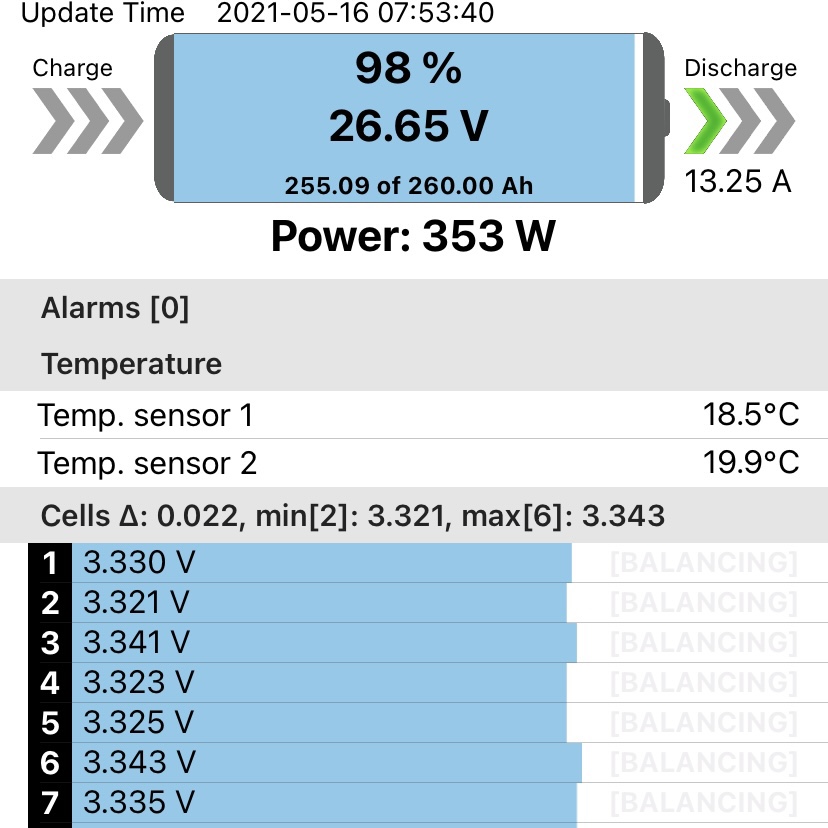
The BMS is a JBD 8s 100A model I got from eBay (eBay affiliate link) that comes with bluetooth monitoring ability. It has worked flawlessly so far. I love it when technology just works. Every setting can be configured. It keeps track of every alarm event. It has temperature protection. Great BMS.
JBD 8S 100A Battery monitoring system (BMS) keeping tabs on my LiFePO4 cellsBMS showing a modest discharge. I’ve taken it to 1200W so far.
Inverter
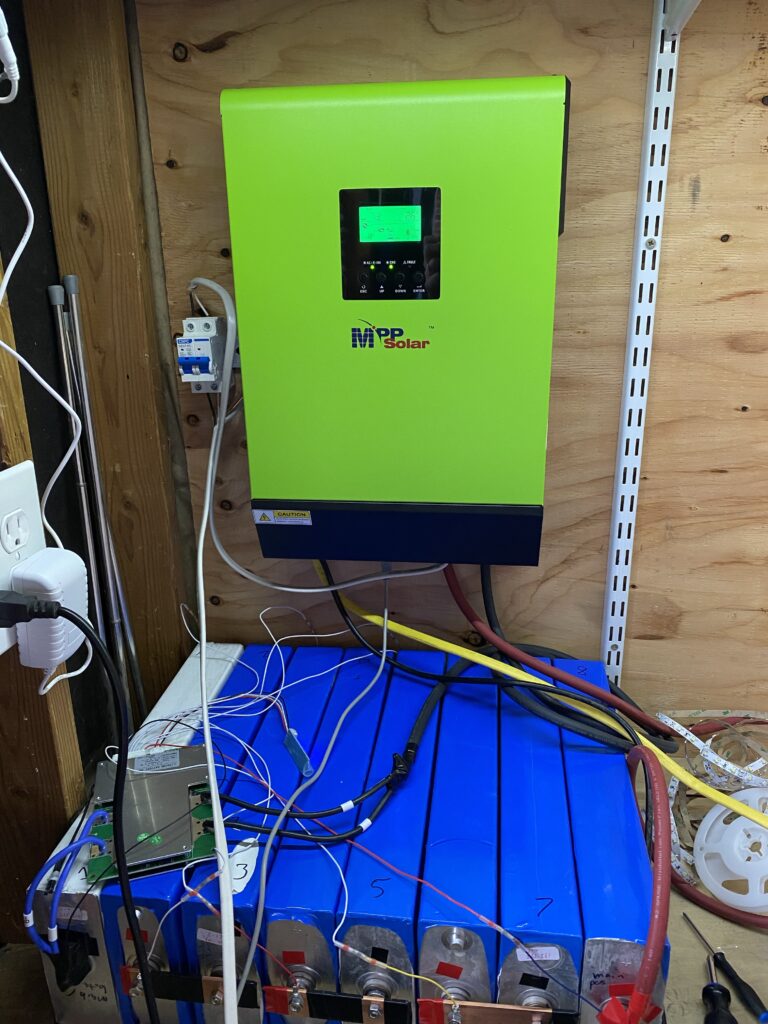
The all-in-one inverter (inverter, battery charger, MPPT solar controller) is a MPP Solar LV2424 hybrid model. Everything works as expected. I’ve tested all the features successfully. I even got the monitoring software going. The main downside so far to this inverter (and I think this is common) is a relatively high idle power consumption. The BMS reports ~56-60W draw with the inverter on and nothing plugged in. The “idle” power draw decreases as a proportion of the total load on the inverter but it never drops to 0. For example, at 0 load, the inverter draws 60W. At 120W load (based on a questionable Kill-A-Watt), the inverter is drawing 160W, meaning the “idle” power dropped to 40W. This inverter was $665.
Inverter mounted above the battery bank. The solar breaker is to the left.
Solar panels
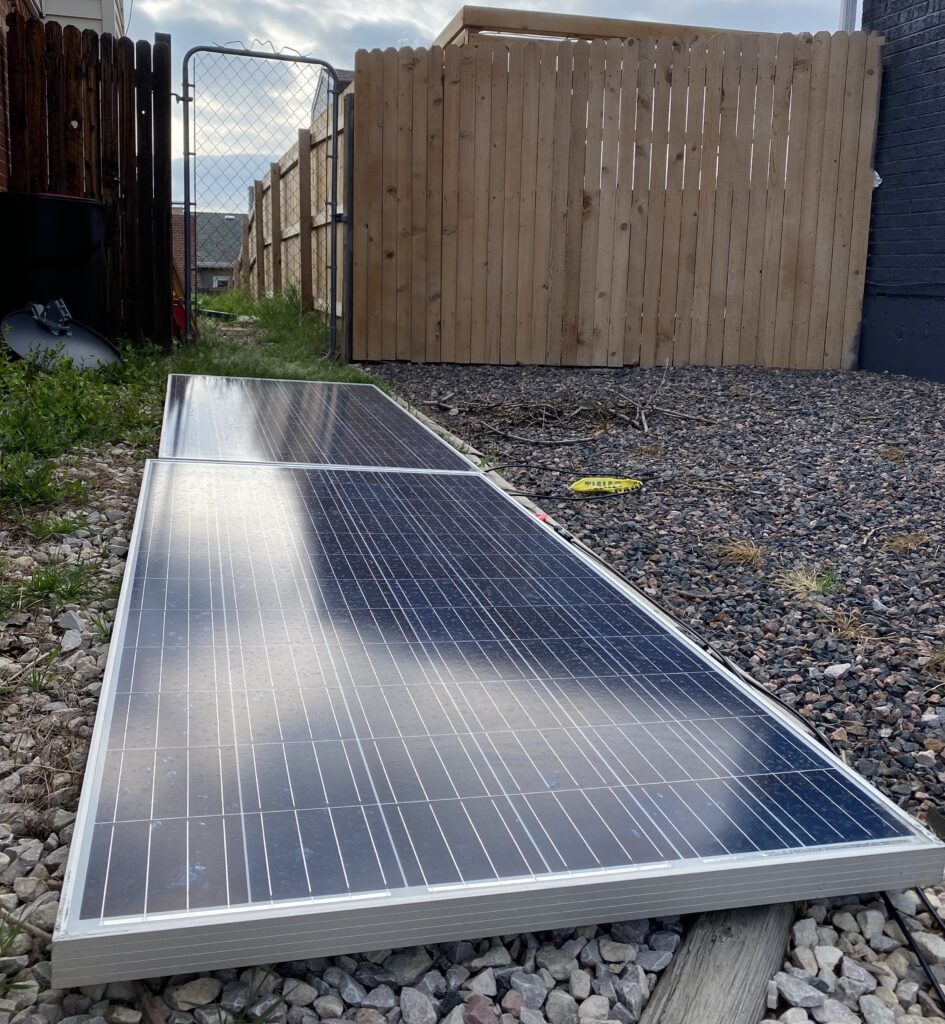
My $100 each solar panels from Craigslist have been hooked up on and off over the last few days. I haven’t seen more than 480W from the 2 of them combined but they are laying completely flat (they should be tilted towards the sun for maximum power). Overall, happy for the price. I need to get them mounted on the roof.
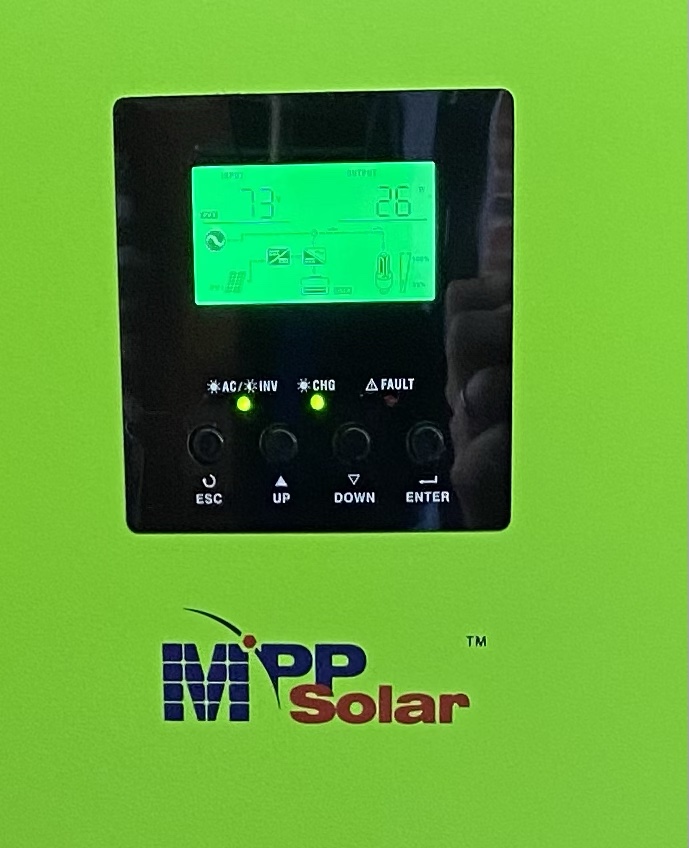
The main testing location on the south side of our house. They’re basically flat, maybe tilted a degree or two to the south. I haven’t seen more than 480W from them (rated for 2×310=620W) yet but they were cheap so I’m not too disappointed.Inverter showing the panels putting out 26W on a very cloudy day recently. It has apparently decided that 73V was optimal for whatever conditions were present.
What’s next
My DIY solar system with battery backup is commissioned! Things are functional. Things aren’t located optimally. I need to get the solar panels mounted on the roof and do some tidying around the batteries/inverter. I plan on mounting some drywall above the battery cells to protect from whatever and covering up all the battery terminals. The rear of the cells are covered. The mains are covered. Some of the intermediate terminals are not.
I’m already looking on Craigslist for more solar panels, but I need to 100% finish this project before adding on to it according to my lovely wife (I am sure some of you know exactly what I’m talking about!). With that, I’ll be signing off for the night. The baby is having a very hard time falling asleep tonight. Until next time!
Disclosure: When you click on links to various merchants in this post and make a purchase, this can result in this site earning a commission. Affiliate programs and affiliations include, but are not limited to, the eBay Partner Network.
HTTP code 302 redirect loops can be caused by a number of things. Most of them tend to be caused by a misconfigured forward or reverse proxy (Apache, NGINX, HAProxy, etc.). In my case, I am in the process of migrating my austinsnerdythings.com WordPress blog from a single tier (NGINX) stack to a 3-tier application stack. This 3-tier stack consists of HAProxy in the front, Varnish in the middle, and NGINX in the back. A simple header setting missing from my NGINX config caused me to spend about an hour figuring out what was causing my HTTP 302 redirect loop.
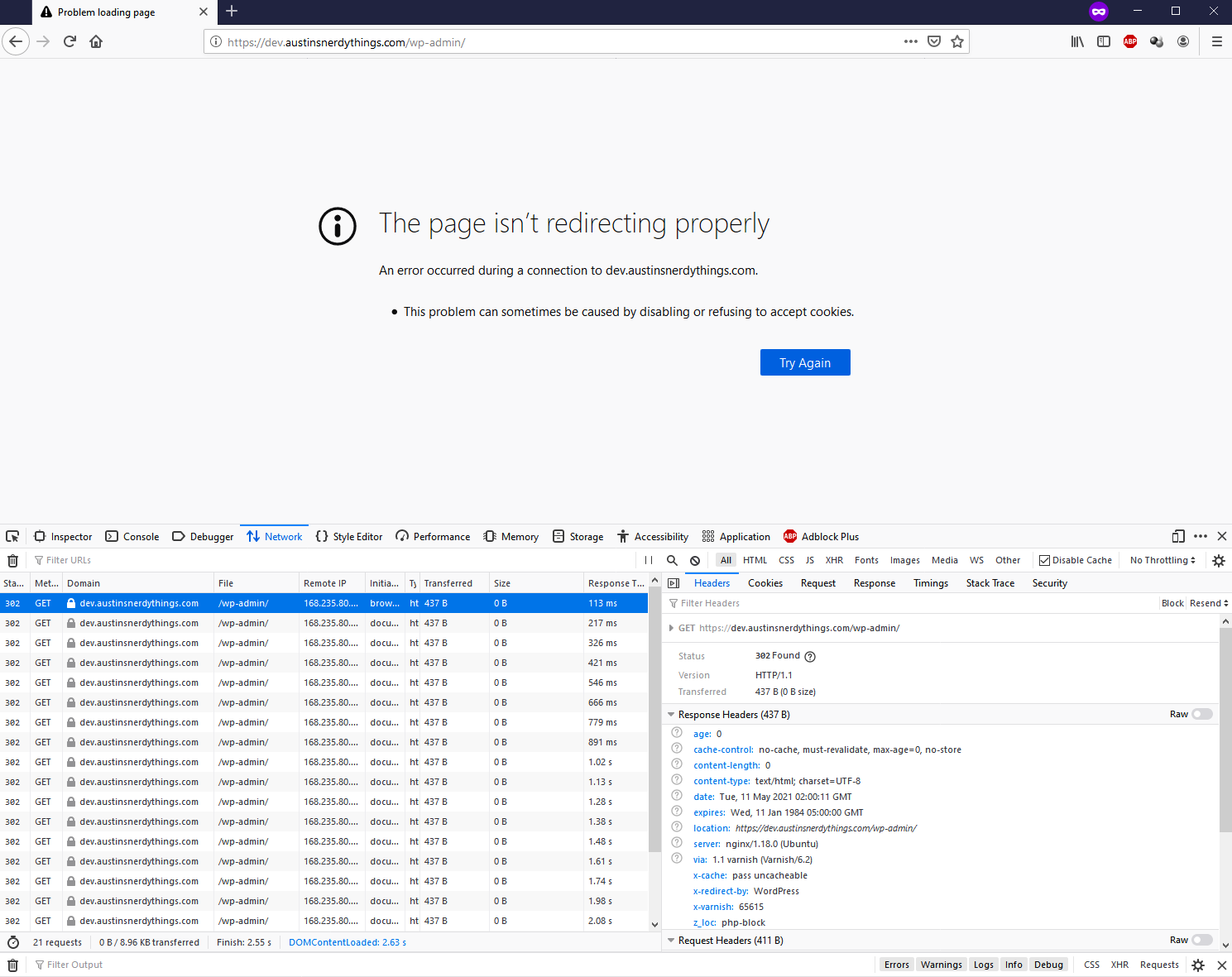
Upon the first visit to my dev site immediately after enabling SSL in the HAProxy config, I was presented with a Firefox error stating “The page isn’t redirecting properly – An error occurred during a connection to dev.austinsnerdythings.com. *this problem can sometimes be caused by disabling or refusing to accept cookies.”. A screenshot of the error (and associated network requests) is presented below. Firefox apparently retried the request 20 times after the initial redirect.
screenshot of HTTP 302 code with associated redirect loop
What’s really going on here
The 3 tiers I’ve selected for my stack each play a distinct role in serving you this webpage. The 3 tiers are:
HAProxy – HAProxy is the first application to see any request to austinsnerdythings.com. It handles SSL (the s in https) and that’s about it. In the future, I can use it to make my site highly available (the HA in HAProxy) and fully redundant but that’s a definitely overkill for now. After dealing with the SSL, it hands off the regular http request to Varnish. HAProxy is fast.
Varnish – is a caching application. That’s all it does. It doesn’t do SSL, which is why we need to stick HAProxy in front. If a page or asset (.js, .css, etc.) hasn’t been accessed recently, Varnish sends the http request to the webserver and stores the result and forwards it back to the original requester (via HAProxy). If a page or asset has been accessed recently, it is stored in memory and is flipped back to HAProxy without even touching the webserver. Varnish is fast.
NGINX – is a event-driven webserver. It takes the http request and fulfills it according to the configuration. For any .php file (basically anything in WordPress), this means sending it to PHP-FPM so the Wordprss code can be executed and a result produced to hand back to NGINX and sent up the tiers.
The request is technically http (not SSL) from exiting HAProxy, through Varnish, and into NGINX. WordPress has at least two features that attempt to send http requests to the equivalent https request. WordPress became unhappy that it was receiving a http request from Varnish (via NGINX) and it turned around and said “don’t use http://dev.austinsnerdythings.com, use https://dev.austinsnerdythings.com”! Varnish and NGINX don’t want https requests. The competing requests turned into the redirect loop.
How to fix the HTTP 302 redirect loop
The solution is pretty easy: you just need to add a single line to your NGINX site config file inside the php block:
fastcgi_param HTTPS 1;
This forces the headers to show the request is in fact a HTTPS request. WordPress is perfectly happy with that and doesn’t try any funny business returning 302 codes.
My full NGINX php block (with credit to where I got this from, nyxi.eu) looks like this:
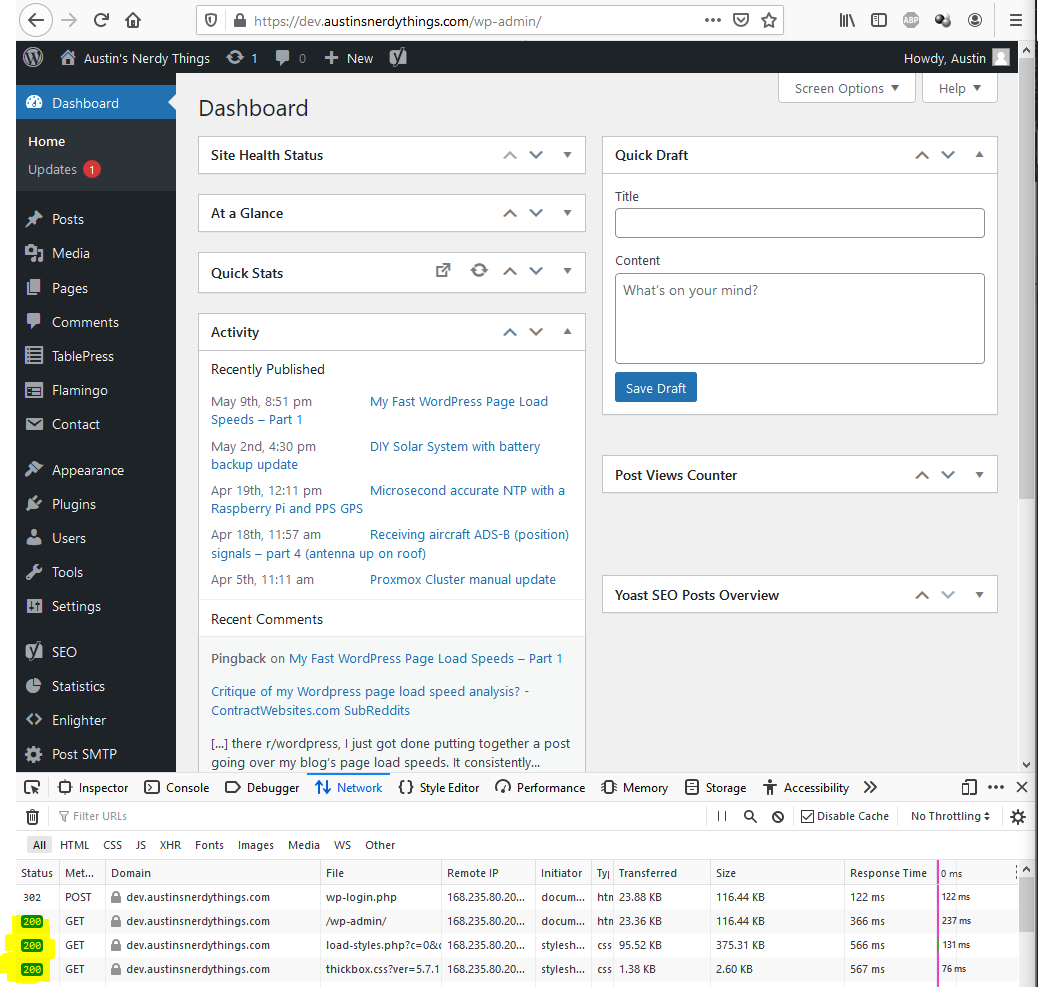
After making the changes and reloading NGINX, I attempted to log in again and was presented with a normal dashboard view with happy, green HTTP 200 codes!
expected screen after attempting to log in after solving the 302 redirect loop
References
Huge shout out to Emil Flink and his post WordPress Nginx redirect loop which really got me pointed in the right direction. He broke down exactly what was happening throughout WordPress’ underlying code and presented it in a a very easy to interpret method.