Categories
Chrony DIY homelab Linux NTP PTP Raspberry Pi

From Milliseconds to 26 Nanoseconds: How a $20 eBay SFP Module Beat My Entire NTP Setup

Welcome to Austin’s Nerdy Things, where we spend years chasing nanoseconds that nobody asked us to chase.

Five years ago, I started this blog by building a microsecond-accurate NTP server with a Raspberry Pi and PPS GPS. Then I went simpler – a $12 USB GPS for millisecond-accurate NTP because ease of use matters too. Then I spent months doing thermal management on the CPU to squeeze out another 81% improvement. My beloved Raspberry Pi 3B has been sitting at around +/- 200 nanoseconds for over a year now, and I figured that was about as good as it gets for consumer hardware.

A $20 eBay purchase from two years ago just demolished all of that.

The Hardware: Telecom Surplus for Pocket Change

The key piece is an Oscilloquartz OSA-5401 – a GPS-disciplined PTP grandmaster clock in an SFP form factor. These things were designed to plug into telecom switches and provide IEEE 1588 Precision Time Protocol timing for cellular networks. They have a built-in GPS receiver, an OCXO (oven-controlled crystal oscillator), and an FPGA that handles hardware PTP timestamping. New, they cost thousands of dollars. On eBay, a handful of decommissioned units went for $20. Now they’re unavailable. If they do appear (rarely), they’re $300-500.

I first spotted these on a ServeTheHome forum thread back in 2024. Someone found a batch on eBay for $20 each and I jumped on one. The firmware doesn’t include the NTP server feature from the spec sheet (that requires a license), but it spews PTP multicast frames on power-up – and that turns out to be all you need. I posted the first working PTP+chrony config in that thread, which others used as a starting point.

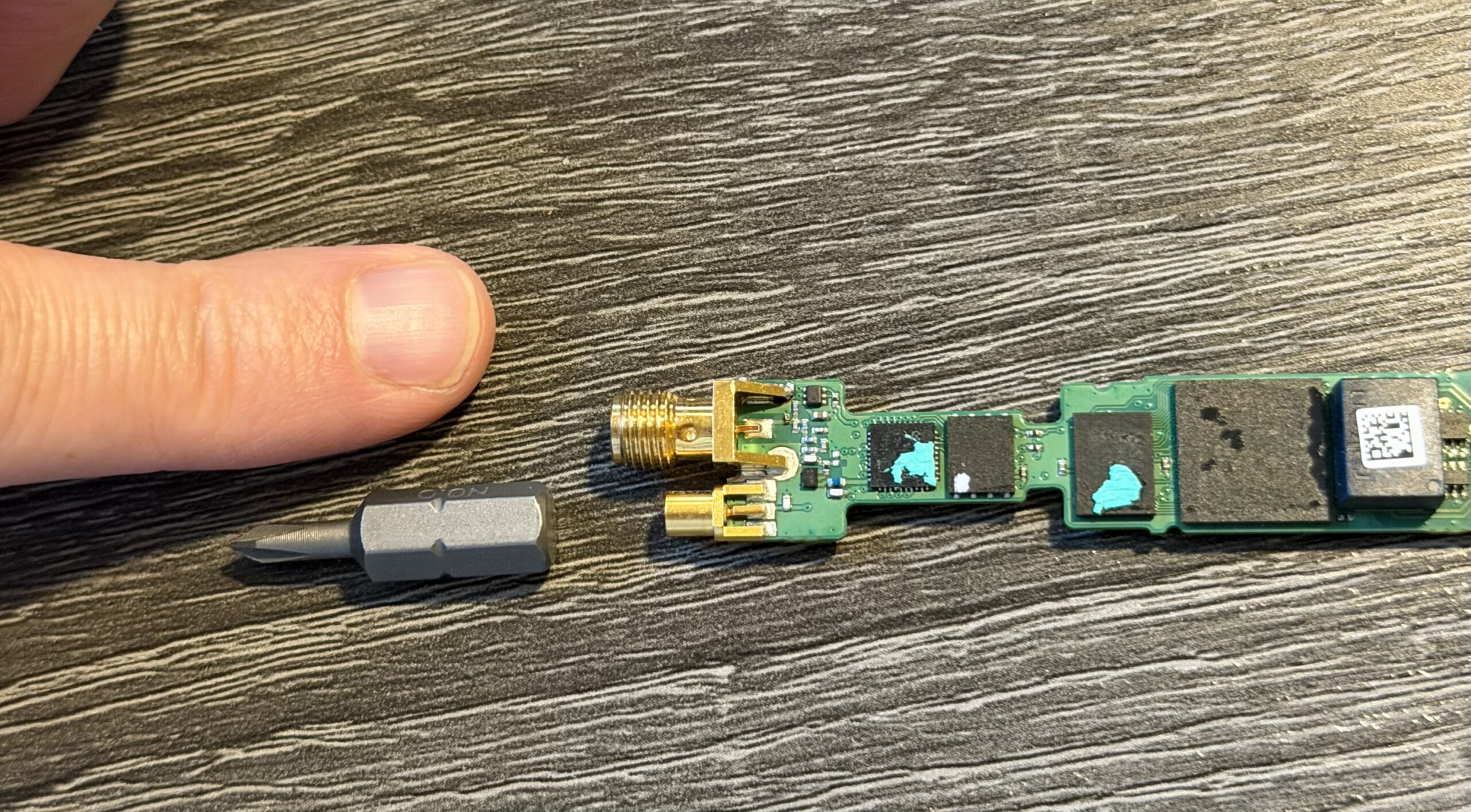
Mine was flaky from the start – the antenna would intermittently disconnect. I reported in the thread that “wiggling the module helped,” which in retrospect should have been a bigger clue. When I finally pulled the board out of the SFP housing, I found the GNSS SMA connector had broken loose from the PCB – probably cracked during decommissioning. A few minutes with a soldering iron fixed that, and it’s been rock solid since. Here’s the board with the resoldered connector, screwdriver bit for scale:

OSA-5401 PCB with resoldered GNSS SMA connector, screwdriver bit for scale

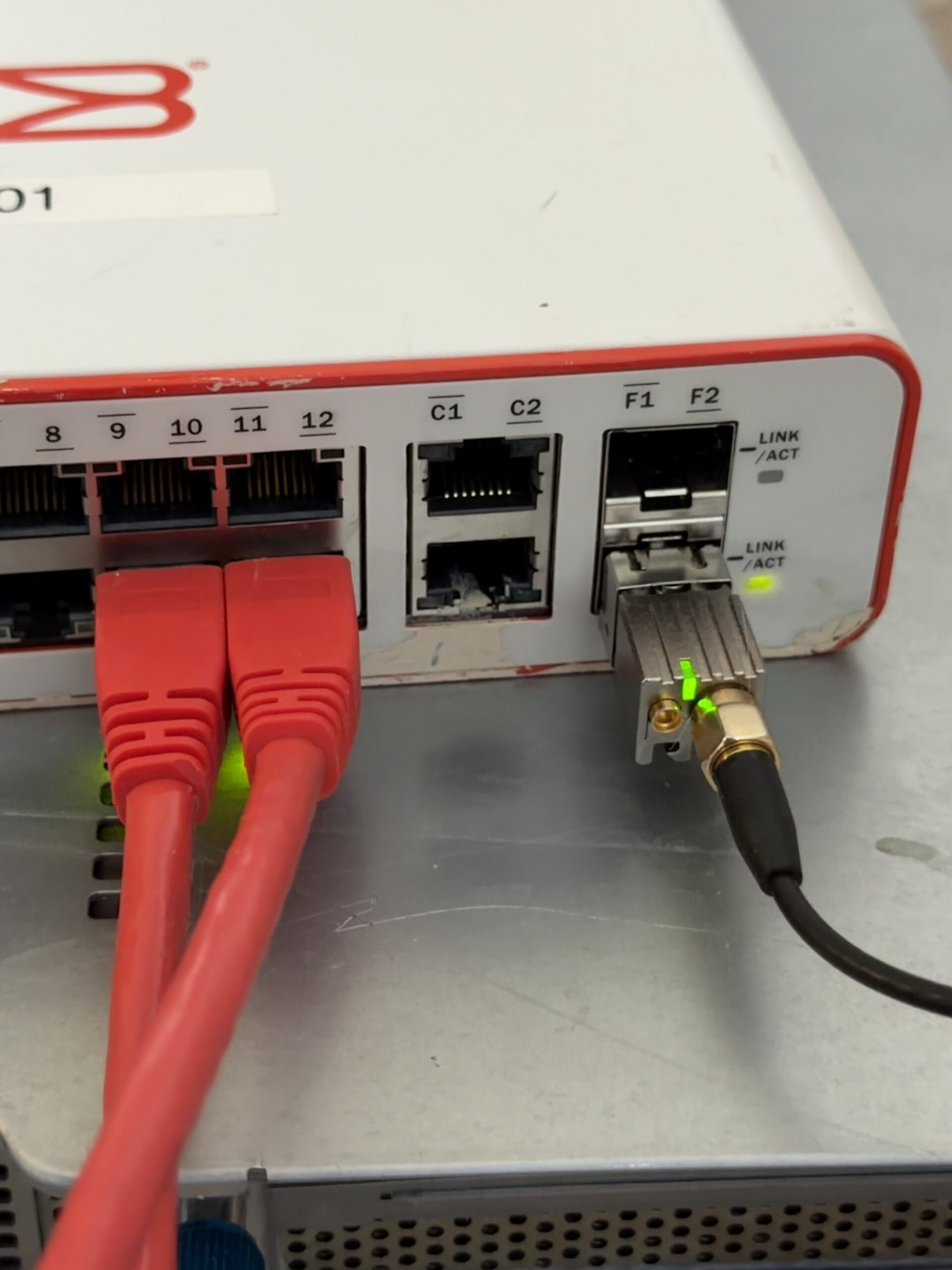
And installed in port F2 of a Brocade ICX6430-C12 switch, GPS antenna connected:

OSA-5401 installed in a Brocade ICX6430-C12 SFP port with GPS antenna

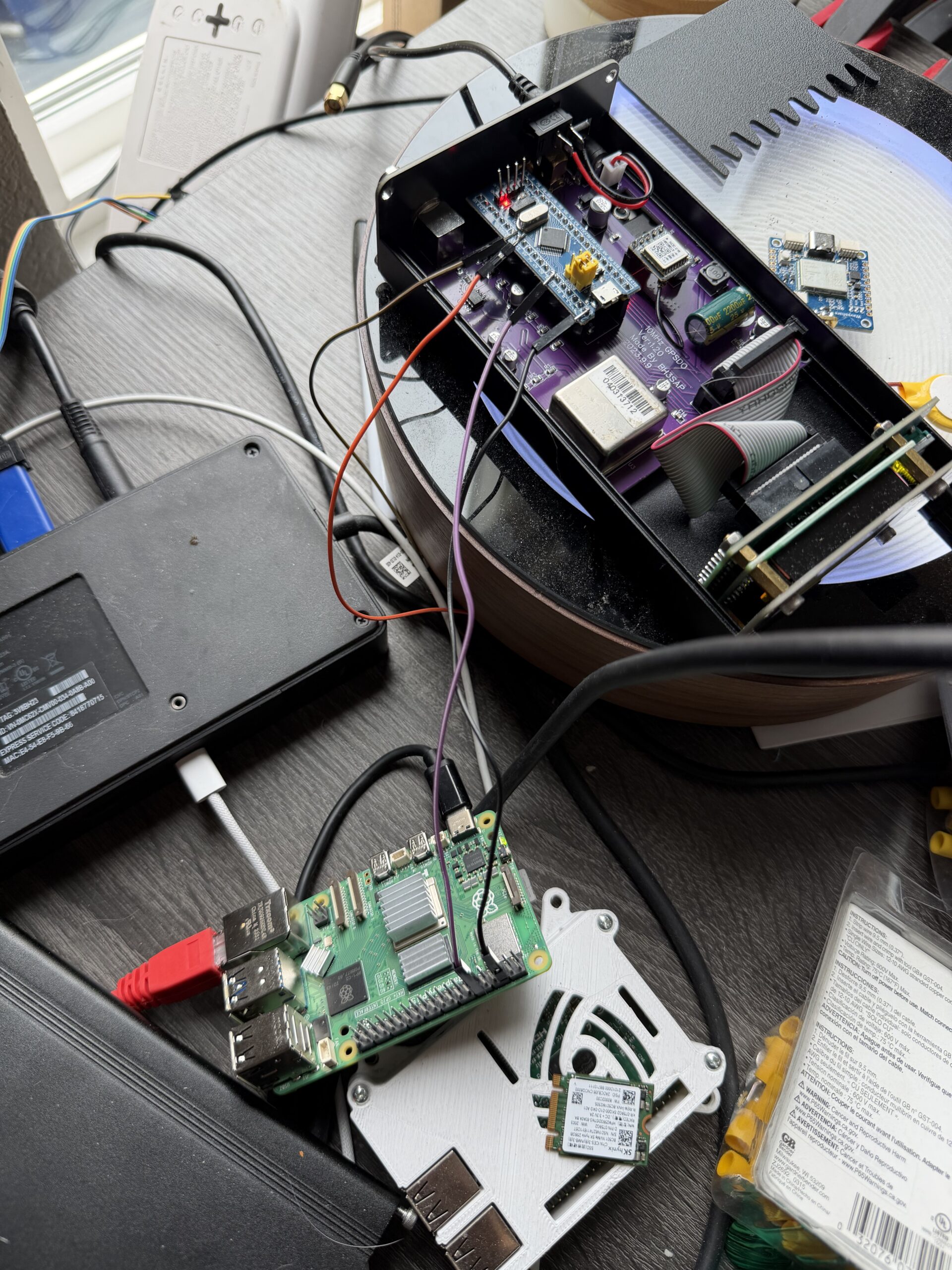
I also have a BH3SAP GPSDO that I picked up for about $70 on eBay – one of those Chinese units with an OX256B OCXO and an STM32 Blue Pill microcontroller. There’s a great thread on EEVBlog about these. I soldered some jumper wires to the MCU PPS output and connected it to GPIO 18 on my Raspberry Pi 5. I’ve been running custom firmware on it (based on fredzo’s gpsdo-fw) with some modifications for telemetry and flywheel display.

The whole mess wired together – GPSDO PPS jumper wires running to the Pi 5’s GPIO header:

GPSDO connected to Raspberry Pi 5 via PPS jumper wires

The Raspberry Pi 5 has hardware timestamping on its Ethernet NIC, which gives it a /dev/ptp0 PTP hardware clock (PHC). This is critical – without hardware timestamping, PTP is no better than NTP. The Pi 5’s Ethernet controller supports it natively.

Here’s the setup:

  • OSA-5401 ($29) – GPS-disciplined PTP grandmaster, plugged into an SFP port on my network switch
  • BH3SAP GPSDO (~$70) – GPS-disciplined OCXO, PPS output wired to Pi 5 GPIO
  • Raspberry Pi 5 – running ptp4l (for PTP) and chronyd (for everything else)
  • Total cost of timing hardware: ~$100

The Software Stack

The timing chain has two hops:

  1. ptp4l receives PTP sync messages from the OSA-5401 over Ethernet and disciplines the Pi’s PTP hardware clock (/dev/ptp0)
  2. chrony reads the hardware clock as a refclock and disciplines the system clock

ptp4l configuration (/etc/linuxptp/ptp4l-osa.conf):

[global]
slaveOnly		1
domainNumber		24
network_transport	L2
time_stamping		hardware
delay_mechanism		E2E
clock_servo		pi
logging_level		6
summary_interval	0

twoStepFlag		1
first_step_threshold	0.00002
step_threshold		0.0
max_frequency		900000000
sanity_freq_limit	200000000

ptp_dst_mac		01:1B:19:00:00:00
p2p_dst_mac		01:80:C2:00:00:0E

[eth0]

The chrony refclock configuration for PTP (/etc/chrony/conf.d/ptp-osa.conf):

# OSA-5401 via ptp4l -> PHC0
# ptp4l disciplines /dev/ptp0 to PTP timescale (TAI)
# tai lets chrony apply the current TAI-UTC offset from its leap second table
refclock PHC /dev/ptp0 refid PTP dpoll -4 poll 0 filter 5 precision 1e-9 tai

A few things worth noting:

  • tai tells chrony the PHC is on TAI timescale and to automatically apply the current TAI-UTC offset (currently 37 seconds). This is better than hardcoding offset -37 because it auto-updates if a leap second is ever announced again.
  • dpoll -4 means chrony reads the PHC 16 times per second. I initially had this at dpoll 0 (once per second), but a tcpdump revealed the OSA-5401 is actually sending PTP sync messages at 16 Hz, not 1 Hz. So there’s fresh data to read.
  • filter 5 takes the median of 5 consecutive reads, rejecting outliers.
  • precision 1e-9 tells chrony the refclock is accurate to 1 nanosecond, which tightens the error bounds that chrony uses in source selection.

The Bug: Why Chrony Refused to Use the Better Source

When I first got this all running, I had both PPS (from the GPSDO) and PTP (from the OSA-5401) configured as refclocks. The GPSDO had lost GPS lock overnight and had been flywheeling for about 12 hours. PTP was clearly the better source – lower jitter, independent GPS reference. But chrony stubbornly stayed on PPS.

Here’s what chronyc sources showed:

MS Name/IP address         Stratum Poll Reach LastRx Last sample
===============================================================================
#* PPS                           0   2   377     5   -114ns[ -132ns] +/-  101ns
#x PTP                           0   2   377     3    -59us[  -59us] +/-  101ns

PPS was selected (*) and PTP was marked x – “may be in error.” But PTP wasn’t in error. The GPSDO had drifted 59 microseconds during 12 hours of flywheel, and chrony was faithfully following it off a cliff.

The culprit was in the PPS refclock config:

refclock PPS /dev/pps0 refid PPS dpoll 0 poll 2 filter 3 precision 1e-7 prefer trust

That trust flag is nuclear. It tells chrony: “this source is always correct – never classify it as a falseticker.” Combined with prefer, chrony would choose PPS no matter how much every other source disagreed with it. Three sources (PTP, pi-ntp, pfsense) all agreed the system clock was off by ~59 μs, but chrony trusted PPS absolutely and marked PTP as suspicious instead.

The fix was simple: remove trust. And after some more testing, remove prefer too. Let chrony’s selection algorithm do its job. As soon as I did that:

MS Name/IP address         Stratum Poll Reach LastRx Last sample
===============================================================================
#- PPS                           0   2    17     1    +59us[  +59us] +/-  101ns
#* PTP                           0   2    37     2    +22ns[  -83ns] +/-   18ns

PTP immediately took over. PPS correctly demoted to - (valid but not selected), showing +59 μs offset – the accumulated GPSDO flywheel drift.

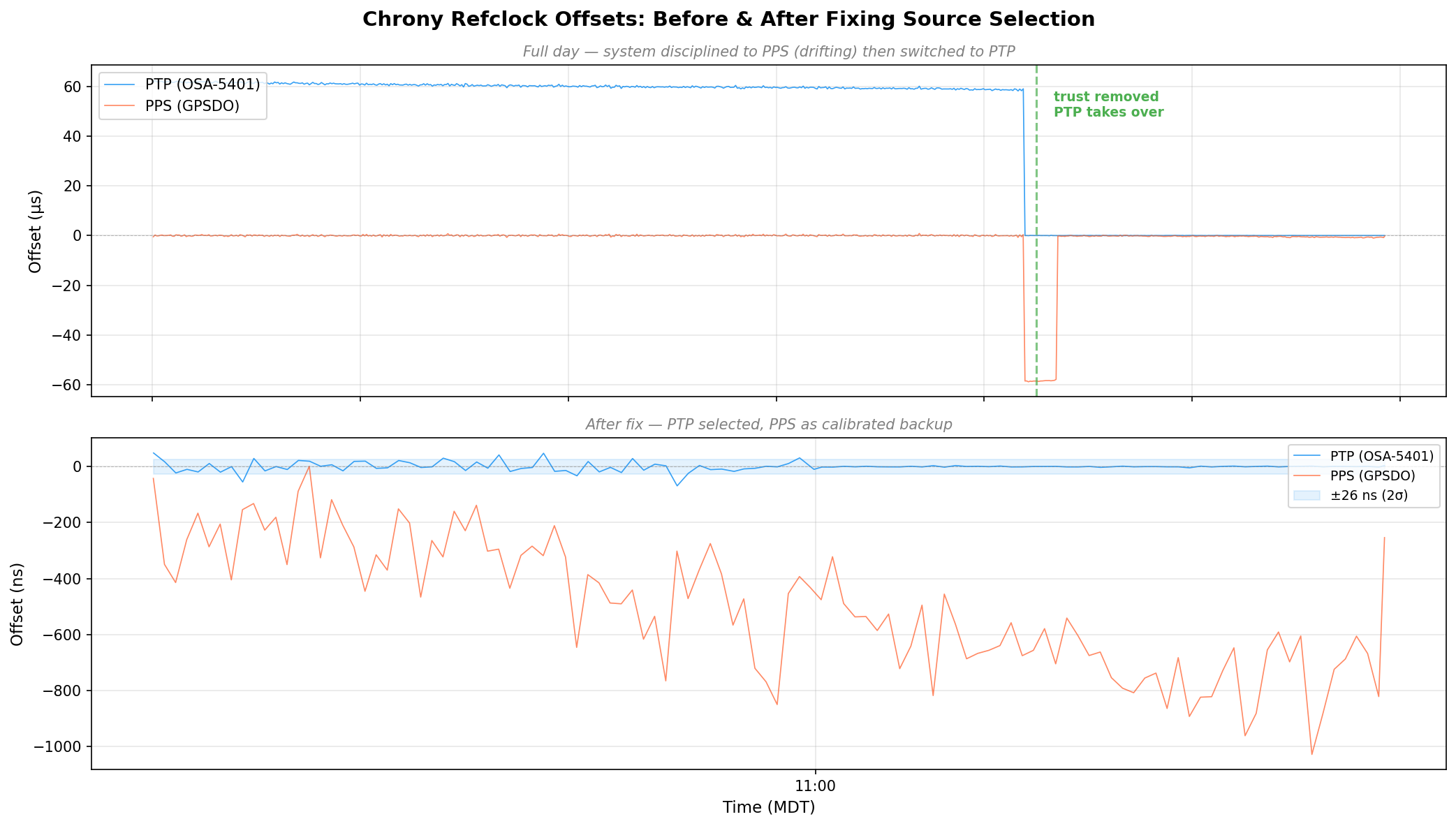
Here’s the full day of refclock data. The top panel is in microseconds – you can see PTP sitting at +60 μs the whole morning because the system clock was following the drifting GPSDO. Then the fix lands around 08:30 MDT and everything snaps into place. The bottom panel zooms into the post-fix period in nanoseconds:

Chrony refclock offsets before and after fixing source selection - PTP drops from 60μs to near-zero
Chrony refclock offsets before and after fixing source selection – PTP drops from 60μs to near-zero

Discovering the 58.3 Microsecond MCU Bias

Once the GPSDO regained GPS lock, I expected PPS to converge back toward PTP. It didn’t. It settled at a rock-solid +58 μs offset with 474 ns standard deviation. Locked, stable, just… late.

The BH3SAP GPSDO doesn’t pass the GPS module’s PPS signal directly to the output. It goes through the STM32 microcontroller – GPIO interrupt, some processing, then the MCU asserts the output pin. And traverses a jumper wire with questionable soldering. That path adds latency (and a not very clean edge). With PTP as ground truth, I could now measure exactly how much.

I pulled 500 samples from chrony’s refclock log and crunched the numbers:

StatValue
Mean-58.319 μs
Median-58.372 μs
Std Dev787 ns
P5–P95-59.2 to -57.4 μs
Range9.8 μs peak-to-peak

A consistent 58.3 microsecond delay. Sub-microsecond jitter – the MCU interrupt path is deterministic, just slow. The fix is a static offset in the chrony config:

refclock PPS /dev/pps0 refid PPS dpoll 0 poll 2 filter 3 precision 1e-7 offset 0.0000583

After applying the offset and restarting chrony:

MS Name/IP address         Stratum Poll Reach LastRx Last sample
===============================================================================
#- PPS                           0   2    37     4   +425ns[ +423ns] +/-  101ns
#* PTP                           0   2    77     4    -24ns[  -26ns] +/-   18ns

PPS went from +58 μs to +425 ns. The two sources now agree to within a microsecond, and PPS is a legitimate backup if PTP ever drops.

The Results: ±26 Nanoseconds

After tuning the PTP refclock parameters (dpoll -4, poll 0, filter 5), here are the final numbers:

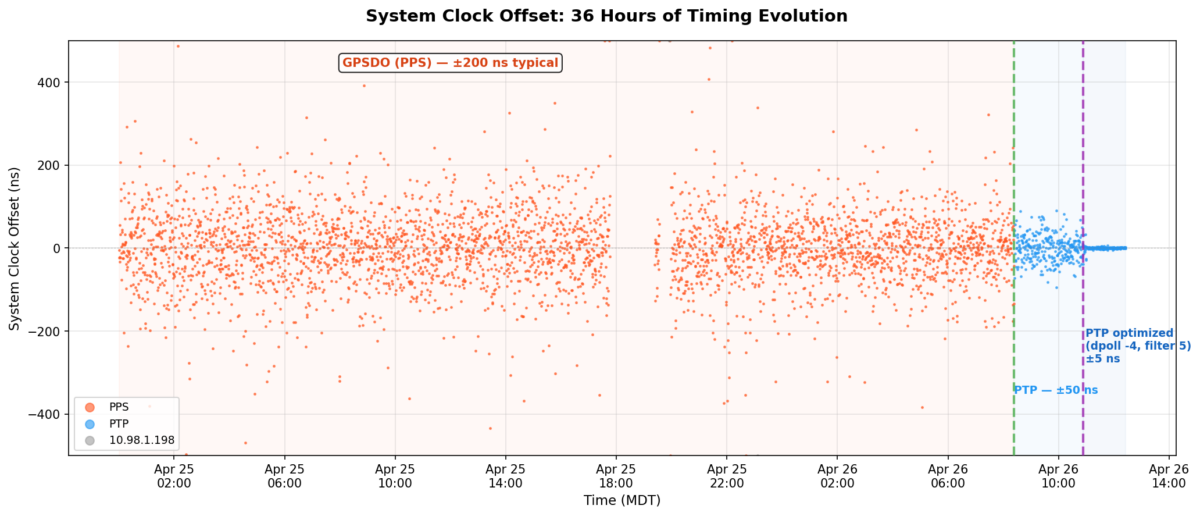
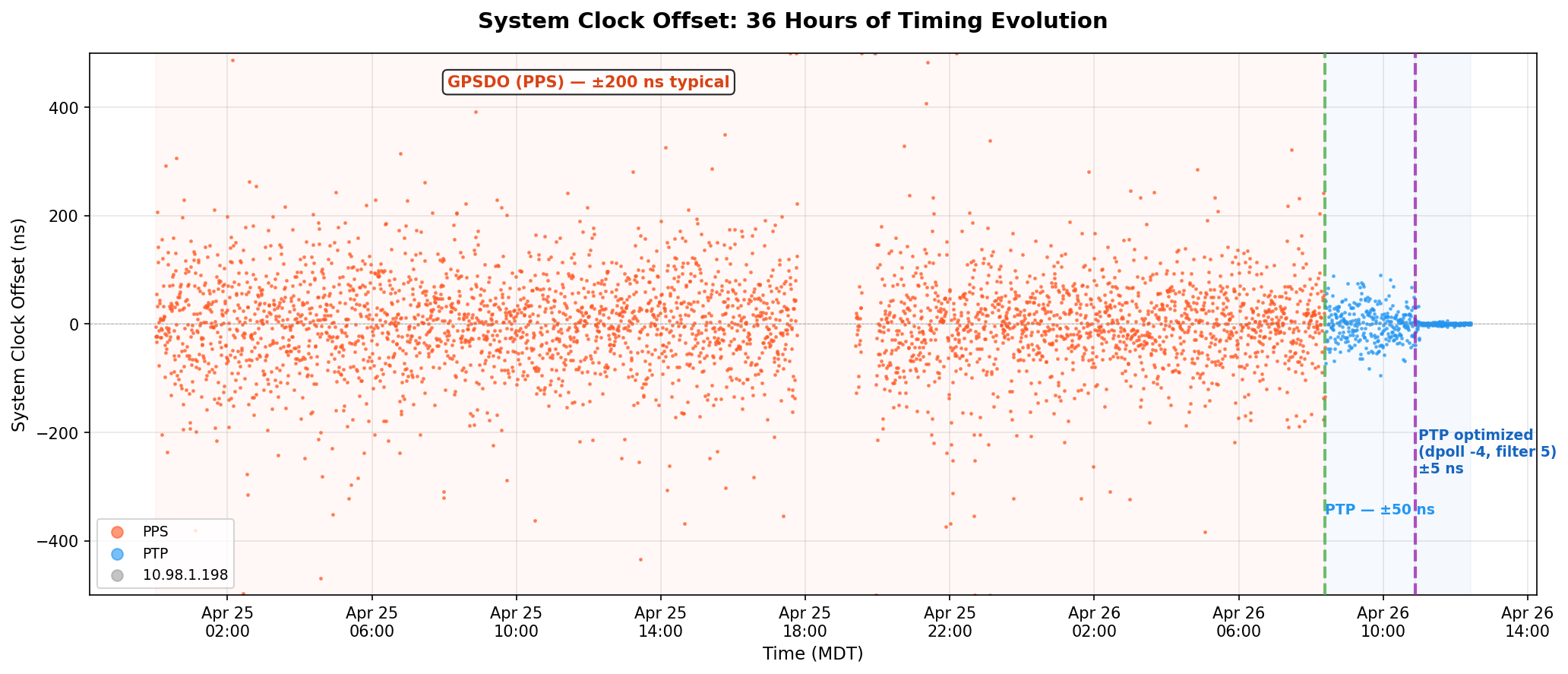
But first, here’s the big picture. This is 36 hours of chrony’s tracking offset – the actual error between the system clock and whatever reference chrony was using at the time:

System clock offset over 36 hours - PPS scattered at ±200 ns, then PTP collapses it to a thin line
System clock offset over 36 hours – PPS scattered at ±200 ns, then PTP collapses it to a thin line

The orange scatter is the GPSDO’s PPS running chrony for a day and a half – ±200 ns on a good minute, ±400 ns on a bad one. The green dashed line is the moment I removed trust and PTP took over. The purple line is when I cranked the polling rate to 16 Hz. After that, the data is a flat line at zero on this scale.

ptp4l (OSA-5401 → Pi hardware clock):

MetricValue
RMS offset11.8 ns
Max offset17 ns
Path delay3,160 ns

chrony (Pi hardware clock → system clock):

MetricValue
Std Dev5 ns
RMS offset4 ns
Frequency skew0.002 ppm

Combined error budget (root sum of squares):

LayerError
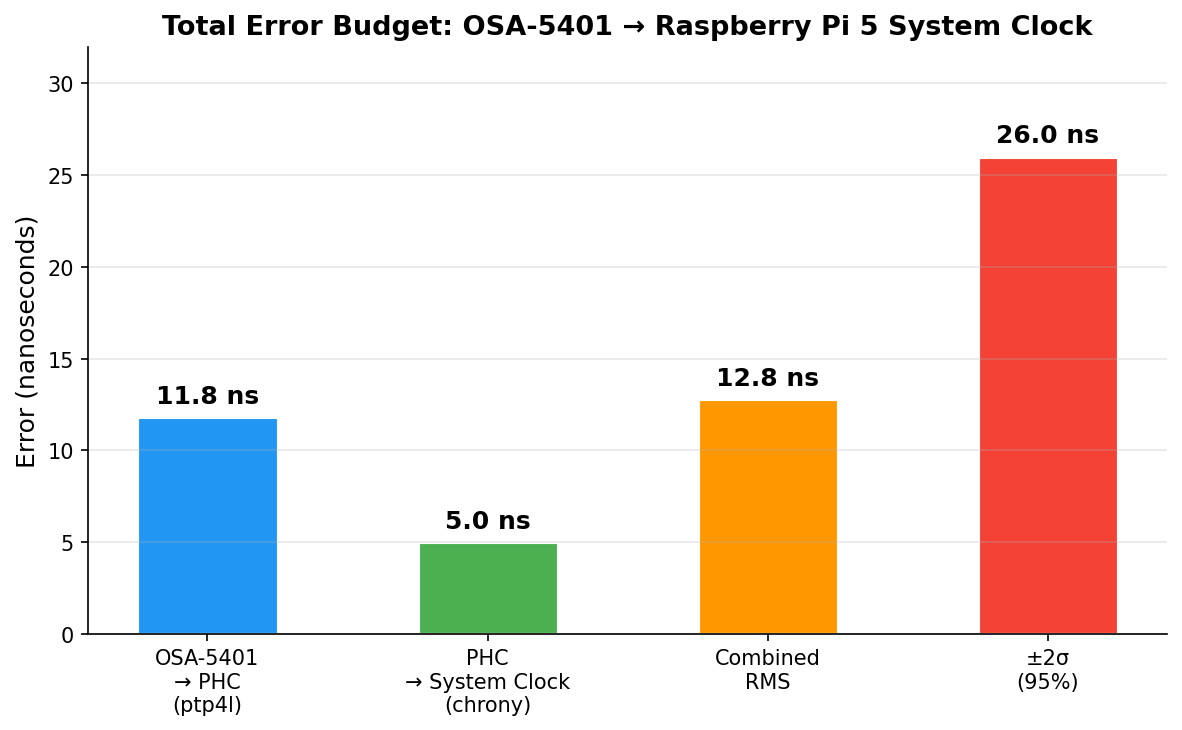
OSA-5401 → PHC (ptp4l)11.8 ns
PHC → system clock (chrony)5.0 ns
Combined RMS12.8 ns
±2σ (95% confidence)±26 ns

For comparison, my Pi 3B NTP server that’s been running for years:

MetricPi 3B (GPS PPS + NTP)Pi 5 (PTP + OSA-5401)
RMS offset182 ns4 ns
Std Dev312 ns5 ns
2σ bound~±600 ns±26 ns
Improvementbaseline~45x better
Error budget breakdown - ptp4l dominates at 11.8 ns, chrony adds 5 ns, combined 12.8 ns RMS
Error budget breakdown – ptp4l dominates at 11.8 ns, chrony adds 5 ns, combined 12.8 ns RMS

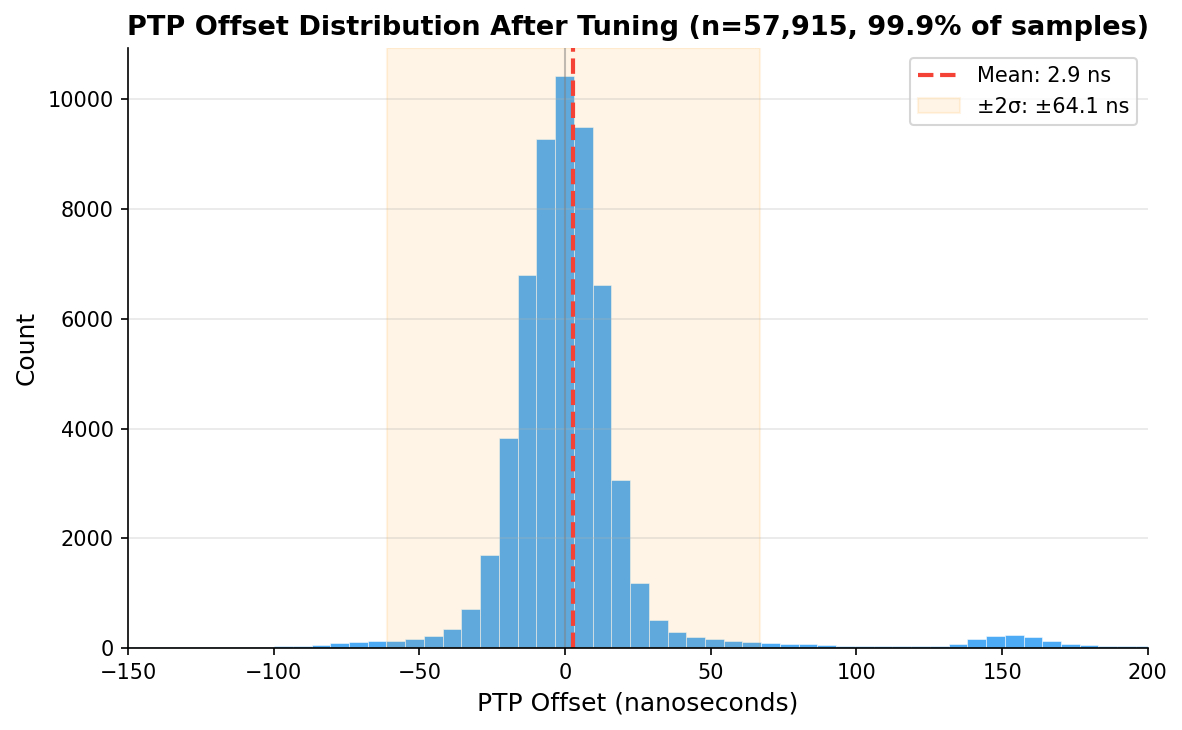
And here’s the distribution of 57,915 PTP offset samples after tuning. Mean of 2.9 ns, tight Gaussian centered right on zero:

PTP offset histogram after tuning - 57,915 samples, mean 2.9 ns
PTP offset histogram after tuning – 57,915 samples, mean 2.9 ns

Checking Our Work: What Does the Raw Data Actually Say?

Those numbers above come from what the servos report. ptp4l prints a 1 Hz RMS summary. chrony’s sourcestats shows the standard deviation of its filtered, averaged output. Both are honest numbers, but they’re the numbers after each servo has done its best to smooth things out. What does the raw measurement data look like?

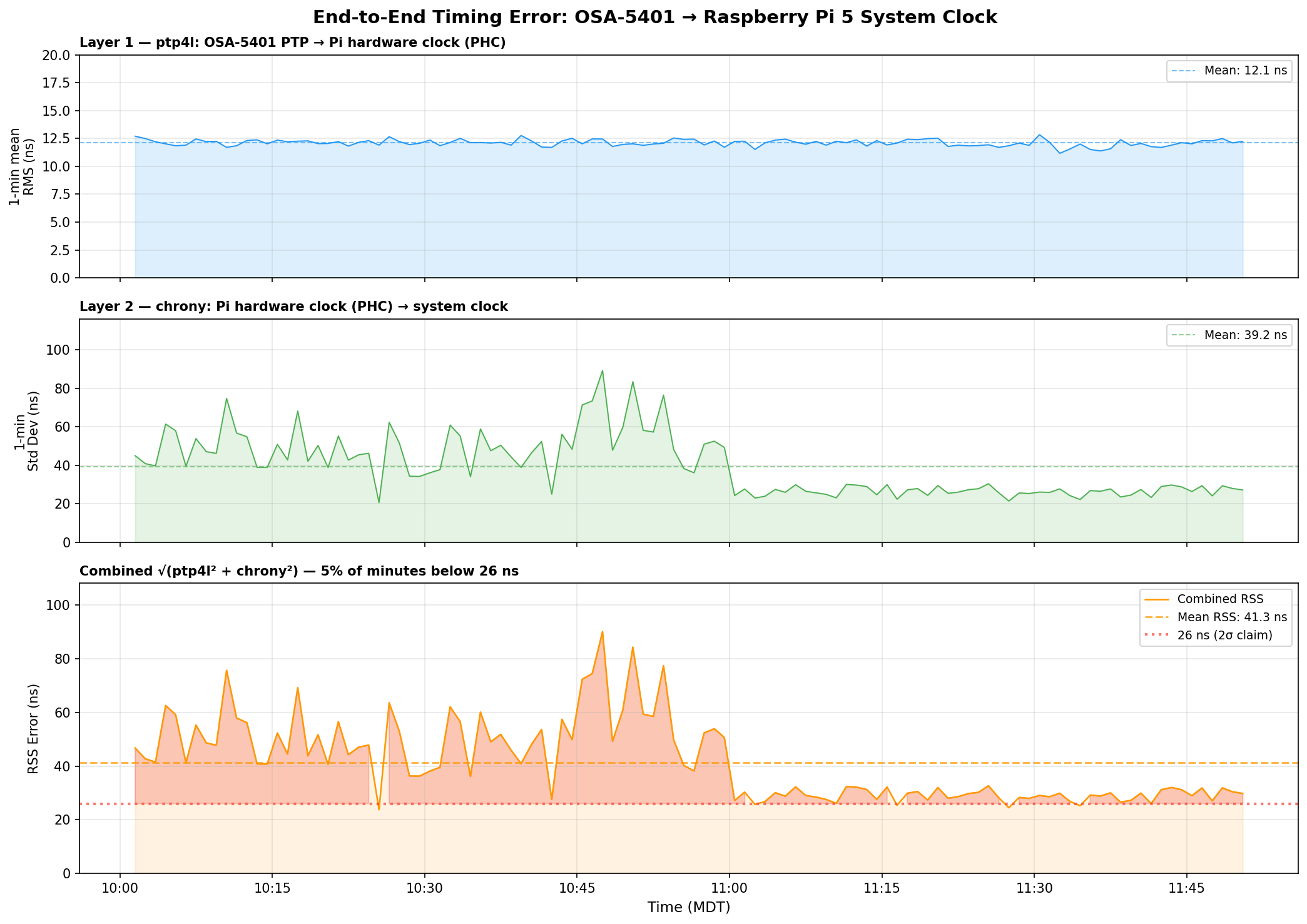
I pulled 110 minutes of overlapping data – ptp4l’s 1 Hz journal summaries and chrony’s 16 Hz raw refclock offset log – and computed 1-minute rolling statistics for each layer, then combined them as root sum of squares:

End-to-end timing error analysis - ptp4l at 12 ns, chrony raw jitter at 39 ns, combined RSS at 41 ns
End-to-end timing error analysis – ptp4l at 12 ns, chrony raw jitter at 39 ns, combined RSS at 41 ns

Three things jump out:

ptp4l is the stable one. Layer 1 (OSA-5401 → PHC) sits at 12.1 ns mean RMS and barely moves. The FPGA doing the hardware timestamping in the OSA-5401 earns its keep here – there’s just not much noise to begin with.

chrony’s raw readings are noisier than its filtered output suggests. The 16 Hz PHC reads have a 39 ns mean standard deviation per minute, with spikes up to 90 ns. But chrony’s sourcestats reports 5 ns – because the median-of-5 filter and the PI servo smooth that out before it touches the system clock. Both numbers are real; they measure different things.

The honest combined number is ±40–50 ns typical, not ±26 ns. The ±26 ns figure from chrony’s tracking output reflects the post-filter error – what the system clock actually experiences after chrony has done its smoothing. The raw measurement chain has more jitter than that. You can see the combined RSS settling toward 27–30 ns in the last hour as the servo tightened, but 40 ns is a fairer typical value.

Even at ±50 ns, that’s still 4× better than the Pi 3B’s ±200 ns. And the trend in the last hour suggests it keeps improving as chrony accumulates more data and tightens its frequency estimate.

GPSDO Flywheel Testing

With the PTP source providing a known-good reference, I can now characterize the GPSDO’s holdover performance. I unplugged the GPSDO’s GPS antenna and let it flywheel on its OCXO. Early results after the first hour showed drift still buried in the noise floor – under 100 ns/hr. The OX256B OCXO in this $70 unit might actually be decent. I’m collecting data for a longer run and will update this post (or write a follow-up) with the full holdover curve.

The dream setup is adding a DS18B20 temperature sensor directly to the OCXO case so I can correlate thermal drift with the oscillator’s frequency offset. That would let me separate temperature-driven drift from aging – but that’s a project for another weekend.

The Journey: Five Years, Six Orders of Magnitude

YearPostMethodAccuracy
2021USB GPS NTPNTP over USB serial~1 ms
2021GPS PPS NTPGPIO PPS + chrony~1 μs
2025Revisiting in 2025Tuned chrony + Pi 3B~200 ns
2025Thermal managementCPU temp stabilization~86→16 ns RMS
2026This postPTP + OSA-5401±26 ns

From a $12 USB GPS dongle to a $29 telecom SFP module. From milliseconds to nanoseconds. The total cost of the timing hardware in my current setup is about $100, and it’s achieving accuracy that used to require five-figure test equipment.

The next step down would be sub-nanosecond, and that requires White Rabbit – dedicated hardware, specialized SFP transceivers, and budgets measured in tens of thousands. For commodity Ethernet and general-purpose Linux, ±26 nanoseconds is pretty much the floor.

I think I’m done. (For now.) At least, that’s what I told my wife.

Configs for Reference

PTP refclock (/etc/chrony/conf.d/ptp-osa.conf)

# OSA-5401 via ptp4l -> PHC0
# ptp4l disciplines /dev/ptp0 to PTP timescale (TAI)
# tai lets chrony apply the current TAI-UTC offset from its leap second table
refclock PHC /dev/ptp0 refid PTP dpoll -4 poll 0 filter 5 precision 1e-9 tai

PPS refclock (/etc/chrony/conf.d/pps-gpsdo.conf)

# GPSDO 1 Hz PPS on GPIO 18
# dpoll 0 = read every pulse (1 Hz)
# filter 3 = median of 3 samples (odd count for true median)
# poll 2 = 4s loop update (2^2=4 >= filter 3)
# offset = MCU PPS delay compensation (58.3us measured against PTP)
refclock PPS /dev/pps0 refid PPS dpoll 0 poll 2 filter 3 precision 1e-7 offset 0.0000583

# Accurate LAN NTP server - coarse time for PPS second identification
server 10.98.1.198 iburst minpoll 4 maxpoll 6

ptp4l service

/usr/sbin/ptp4l -f /etc/linuxptp/ptp4l-osa.conf -i eth0

chrony main config highlights

log tracking measurements statistics refclocks
maxupdateskew 0.1
rtcsync
makestep 1 -1
leapsectz right/UTC
hwtimestamp *

The hwtimestamp * line enables hardware timestamping on all interfaces, and leapsectz right/UTC is required for the tai refclock option to work correctly.

Categories
Ansible homelab Kubernetes Linux proxmox Terraform

Deploying a Kubernetes Cluster within Proxmox using Ansible

Introduction / Background

This post has been a long time coming. I apologize for how long it’s taken. I noticed that many other blogs left off at a similar position as I did. Get the VMs created then…. nothing. Creating a Kubernetes cluster locally is a much cheaper (read: basically free) option to learn how Kubes works compared to a cloud-hosted solution or a full-blown Kubernetes engine/solution, such as AWS Elastic Kubernetes Service (EKS), Azure Kubernetes Service (AKS), or Google Kubernetes Engine (GKE).

Anyways, I finally had some time to complete the tutorial series so here we are. Since the last post, my wife and I are now expecting our 2nd kid, I put up a new solar panel array, built our 1st kid a new bed, messed around with MacOS Monterey on Proxmox, built garden boxes, and a bunch of other stuff. Life happens. So without much more delay let’s jump back in.

Here’s a screenshot of the end state Kubernetes Dashboard showing our nodes:

ur Proxmox VM nodes deployed via Terraform
Kubernetes Dashboard showing our Proxmox VM nodes deployed via Terraform

Current State

If you’ve followed the blog series so far, you should have four VMs in your Proxmox cluster ready to go with SSH keys set, the hard drive expanded, and the right amount of vCPUs and memory allocated. If you don’t have those ready to go, take a step back (Deploying Kubernetes VMs in Proxmox with Terraform) and get caught up. We’re not going to use the storage VM. Some guides I followed had one but I haven’t found a need for it yet so we’ll skip it.

VMs in Proxmox ready for Kubernetes installation

Ansible

What is Ansible

If you ask DuckDuckGo to define ansible, it will tell you the following: “A hypothetical device that enables users to communicate instantaneously across great distances; that is, a faster-than-light communication device.”

In our case, it is “a open-source software provisioning, configuration management, and application-deployment tool enabling infrastructure as code.”

We will thus be using Ansible to run the initial Kubernetes set up steps on every machine, initialize the cluster on the master, and join the cluster on the workers/agents.

Initial Ansible Housekeeping

First we need to specify some variables similar to how we did it with Terraform. Create a file in your working directory called ansible-vars.yml and put the following into it:

# specifying a CIDR for our cluster to use.
# can be basically any private range except for ranges already in use.
# apparently it isn't too hard to run out of IPs in a /24, so we're using a /22
pod_cidr: "10.16.0.0/22"

# this defines what the join command filename will be
join_command_location: "join_command.out"

# setting the home directory for retreiving, saving, and executing files
home_dir: "/home/ubuntu"

Equally as important (and potentially a better starting point than the variables) is defining the hosts. In ansible-hosts.txt:

# this is a basic file putting different hosts into categories
# used by ansible to determine which actions to run on which hosts

[all]
10.98.1.41
10.98.1.51
10.98.1.52

[kube_server]
10.98.1.41

[kube_agents]
10.98.1.51
10.98.1.52

[kube_storage]
#10.98.1.61

Checking Ansible can communicated with our hosts

Let’s pause here and make sure Ansible can communicate with our VMs. We will use a simple built-in module named ‘ping’ to do so. The below command broken down:

  • -i ansible-hosts.txt – use the ansible-hosts.txt file
  • all – run the command against the [all] block from the ansible-hosts.txt file
  • -u ubuntu – log in with user ubuntu (since that’s what we set up with the Ubuntu 20.04 Cloud Init template). if you don’t use -u [user], it will use your currently logged in user to attempt to SSH.
  • -m ping – run the ping module
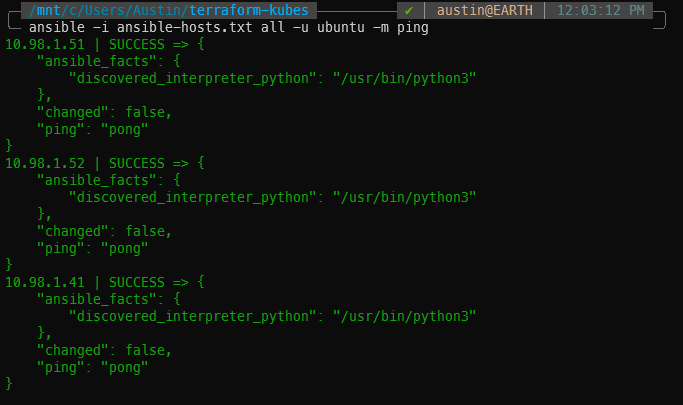
ansible -i ansible-hosts.txt all -u ubuntu -m ping

If all goes well, you will receive “ping”: “pong” for each of the VMs you have listed in the [all] block of the ansible-hosts.txt file.

Using Ansible’s ping to check communications with each of the VMs for deployment

Potential SSH errors

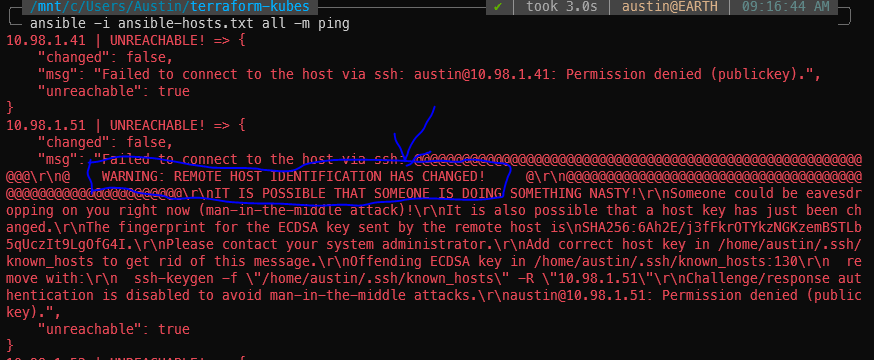
If you’ve previously SSH’d to these IPs and have subsequently destroyed/re-created them, you will get scary sounding SSH errors about remote host identification has changed. Run the suggested ssh-keygen -f command for each of the IPs to fix it.

You might also have to SSH into each of the hosts to accept the host key. I’ve done this whole procedure a couple times so I don’t recall what will pop up first attempt.

SSH remote host identification has changed error. Run suggested ssh-keygen -f command to resolve.
ssh-keygen -f "/home/<username_here>/.ssh/known_hosts" -R "10.98.1.41"
ssh-keygen -f "/home/<username_here>/.ssh/known_hosts" -R "10.98.1.51"
ssh-keygen -f "/home/<username_here>/.ssh/known_hosts" -R "10.98.1.52"
ssh-keygen -f "/home/<username_here>/.ssh/known_hosts" -R "10.98.1.61"

Installing Kubernetes dependencies with Ansible

Then we need a script to install the dependencies and the Kubernetes utilities themselves. This script does quite a few things. Gets apt ready to install things, adding the Docker & Kubernetes signing key, installing Docker and Kubernetes, disabling swap, and adding the ubuntu user to the Docker group.

ansible-install-kubernetes-dependencies.yml:

# https://kubernetes.io/blog/2019/03/15/kubernetes-setup-using-ansible-and-vagrant/
# https://github.com/virtualelephant/vsphere-kubernetes/blob/master/ansible/cilium-install.yml#L57

# ansible .yml files define what tasks/operations to run

---
- hosts: all # run on the "all" hosts category from ansible-hosts.txt
  # become means be superuser
  become: true
  remote_user: ubuntu
  tasks:
  - name: Install packages that allow apt to be used over HTTPS
    apt:
      name: "{{ packages }}"
      state: present
      update_cache: yes
    vars:
      packages:
      - apt-transport-https
      - ca-certificates
      - curl
      - gnupg-agent
      - software-properties-common

  - name: Add an apt signing key for Docker
    apt_key:
      url: https://download.docker.com/linux/ubuntu/gpg
      state: present

  - name: Add apt repository for stable version
    apt_repository:
      repo: deb [arch=amd64] https://download.docker.com/linux/ubuntu xenial stable
      state: present

  - name: Install docker and its dependecies
    apt: 
      name: "{{ packages }}"
      state: present
      update_cache: yes
    vars:
      packages:
      - docker-ce 
      - docker-ce-cli 
      - containerd.io
      
  - name: verify docker installed, enabled, and started
    service:
      name: docker
      state: started
      enabled: yes
      
  - name: Remove swapfile from /etc/fstab
    mount:
      name: "{{ item }}"
      fstype: swap
      state: absent
    with_items:
      - swap
      - none

  - name: Disable swap
    command: swapoff -a
    when: ansible_swaptotal_mb >= 0
    
  - name: Add an apt signing key for Kubernetes
    apt_key:
      url: https://packages.cloud.google.com/apt/doc/apt-key.gpg
      state: present

  - name: Adding apt repository for Kubernetes
    apt_repository:
      repo: deb https://apt.kubernetes.io/ kubernetes-xenial main
      state: present
      filename: kubernetes.list

  - name: Install Kubernetes binaries
    apt: 
      name: "{{ packages }}"
      state: present
      update_cache: yes
    vars:
      packages:
        # it is usually recommended to specify which version you want to install
        - kubelet=1.23.6-00
        - kubeadm=1.23.6-00
        - kubectl=1.23.6-00
        
  - name: hold kubernetes binary versions (prevent from being updated)
    dpkg_selections:
      name: "{{ item }}"
      selection: hold
    loop:
      - kubelet
      - kubeadm
      - kubectl
        
# this has to do with nodes having different internal/external/mgmt IPs
# {{ node_ip }} comes from vagrant, which I'm not using yet
#  - name: Configure node ip - 
#    lineinfile:
#      path: /etc/default/kubelet
#      line: KUBELET_EXTRA_ARGS=--node-ip={{ node_ip }}

  - name: Restart kubelet
    service:
      name: kubelet
      daemon_reload: yes
      state: restarted
      
  - name: add ubuntu user to docker
    user:
      name: ubuntu
      group: docker
  
  - name: reboot to apply swap disable
    reboot:
      reboot_timeout: 180 #allow 3 minutes for reboot to happen

With our fresh VMs straight outta Terraform, let’s now run the Ansible script to install the dependencies.

Ansible command to run the Kubernetes dependency playbook (pretty straight-forward: the -i is to input the hosts file, then the next argument is the playbook file itself):

ansible-playbook -i ansible-hosts.txt ansible-install-kubernetes-dependencies.yml

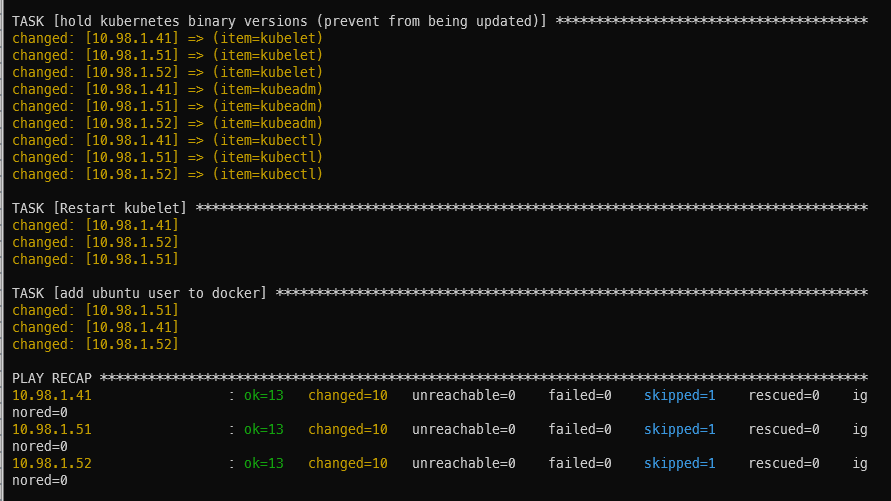
It’ll take a bit of time to run (1m26s in my case). If all goes well, you will be presented with a summary screen (called PLAY RECAP) showing some items in green with status ok and some items in orange with status changed. I got 13 ok’s, 10 changed’s, and 1 skipped.

Ansible play recap showing successful Kubernetes dependencies installation

Initialize the Kubernetes cluster on the master

With the dependencies installed, we can now proceed to initialize the Kubernetes cluster itself on the server/master machine. This script sets docker to use systemd cgroups driver (don’t recall what the alternative is at the moment but this was the easiest of the alternatives), initializes the cluster, copies the cluster files to the ubuntu user’s home directory, installs Calico networking plugin, and the standard Kubernetes dashboard.

ansible-init-cluster.yml:

- hosts: kube_server
  become: true
  remote_user: ubuntu
  
  vars_files:
    - ansible-vars.yml
    
  tasks:
  - name: set docker to use systemd cgroups driver
    copy:
      dest: "/etc/docker/daemon.json"
      content: |
        {
          "exec-opts": ["native.cgroupdriver=systemd"]
        }
  - name: restart docker
    service:
      name: docker
      state: restarted
    
  - name: Initialize Kubernetes cluster
    command: "kubeadm init --pod-network-cidr {{ pod_cidr }}"
    args:
      creates: /etc/kubernetes/admin.conf # skip this task if the file already exists
    register: kube_init
    
  - name: show kube init info
    debug:
      var: kube_init
      
  - name: Create .kube directory in user home
    file:
      path: "{{ home_dir }}/.kube"
      state: directory
      owner: 1000
      group: 1000

  - name: Configure .kube/config files in user home
    copy:
      src: /etc/kubernetes/admin.conf
      dest: "{{ home_dir }}/.kube/config"
      remote_src: yes
      owner: 1000
      group: 1000
      
  - name: restart kubelet for config changes
    service:
      name: kubelet
      state: restarted
      
  - name: get calico networking
    get_url:
      url: https://projectcalico.docs.tigera.io/manifests/calico.yaml
      dest: "{{ home_dir }}/calico.yaml"
      
  - name: apply calico networking
    become: no
    command: kubectl apply -f "{{ home_dir }}/calico.yaml"
    
  - name: get dashboard
    get_url:
      url: https://raw.githubusercontent.com/kubernetes/dashboard/v2.5.0/aio/deploy/recommended.yaml
      dest: "{{ home_dir }}/dashboard.yaml"
    
  - name: apply dashboard
    become: no
    command: kubectl apply -f "{{ home_dir }}/dashboard.yaml"

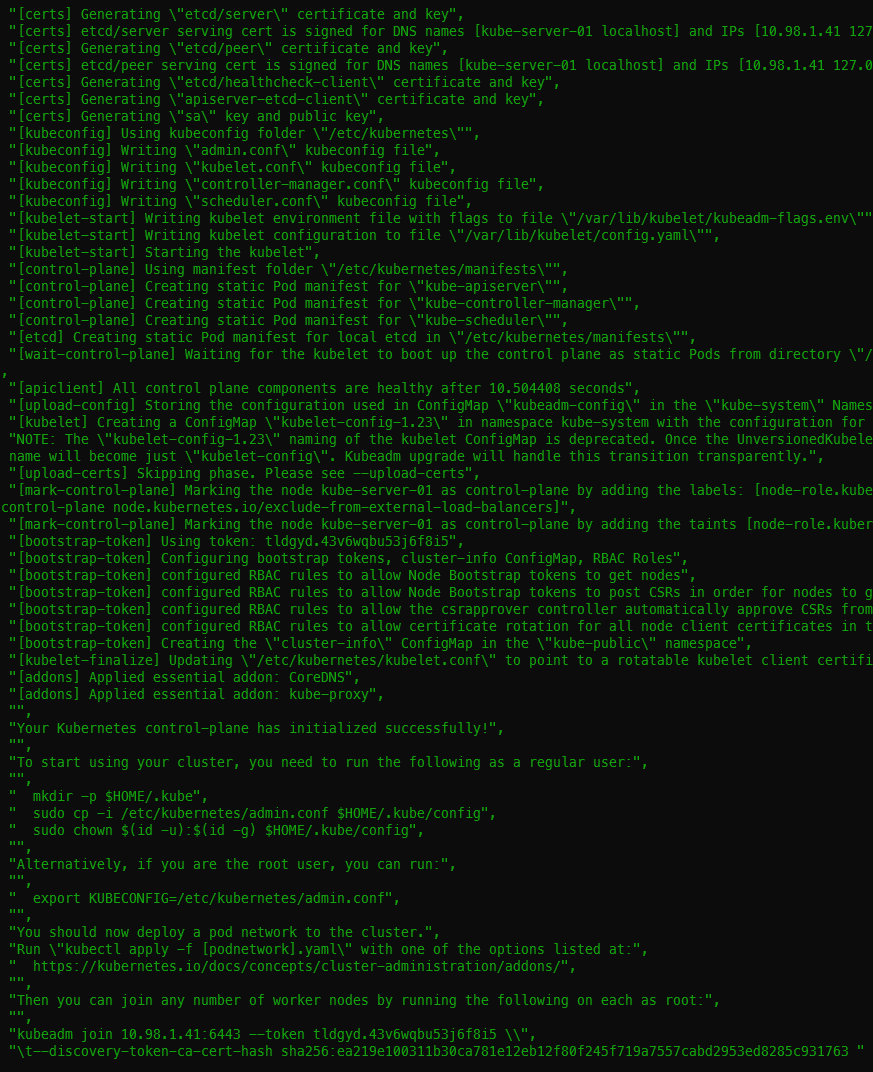
Initializing the cluster took 53s on my machine. One of the first tasks is to download the images which takes the majority of the duration. You should get 13 ok and 10 changed with the init. I had two extra user check tasks because I was fighting some issues with applying the Calico networking.

ansible-playbook -i ansible-hosts.txt ansible-init-cluster.yml
Successful Kubernetes init execution showing join token at the bottom

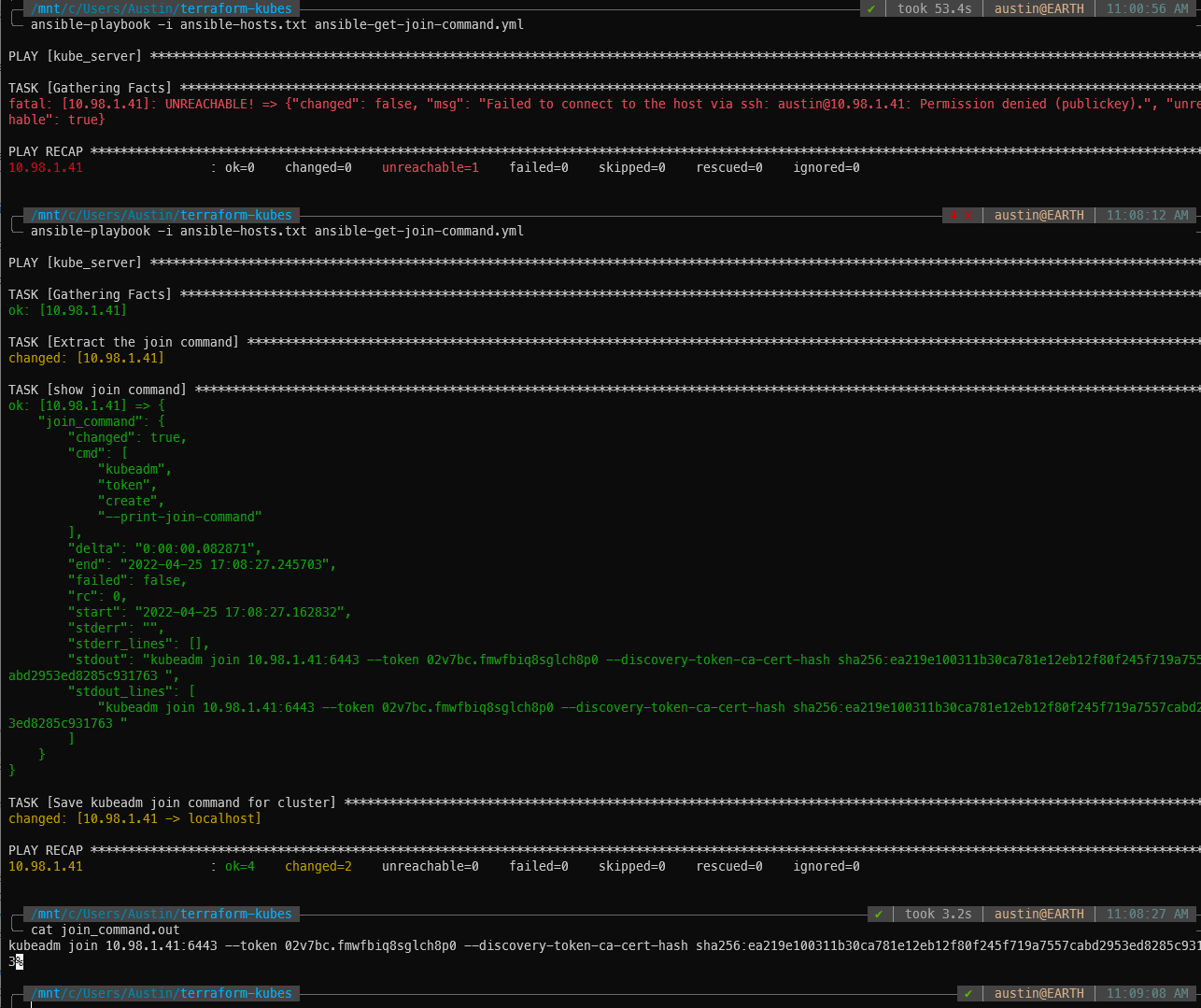
Getting the join command and joining worker nodes

With the master up and running, we need to retrieve the join command. I chose to save the command locally and read the file in a subsequent Ansible playbook. This could certainly be combined into a single playbook.

ansible-get-join-command.yaml –

- hosts: kube_server
  become: false
  remote_user: ubuntu
  
  vars_files:
    - ansible-vars.yml
    
  tasks:
  - name: Extract the join command
    become: true
    command: "kubeadm token create --print-join-command"
    register: join_command
    
  - name: show join command
    debug:
      var: join_command
      
  - name: Save kubeadm join command for cluster
    local_action: copy content={{ join_command.stdout_lines | last | trim }} dest={{ join_command_location }} # defaults to your local cwd/join_command.out

And for the command:

ansible-playbook -i ansible-hosts.txt ansible-get-join-command.yml
Successfully retrieved the join command and saved it to the local machine

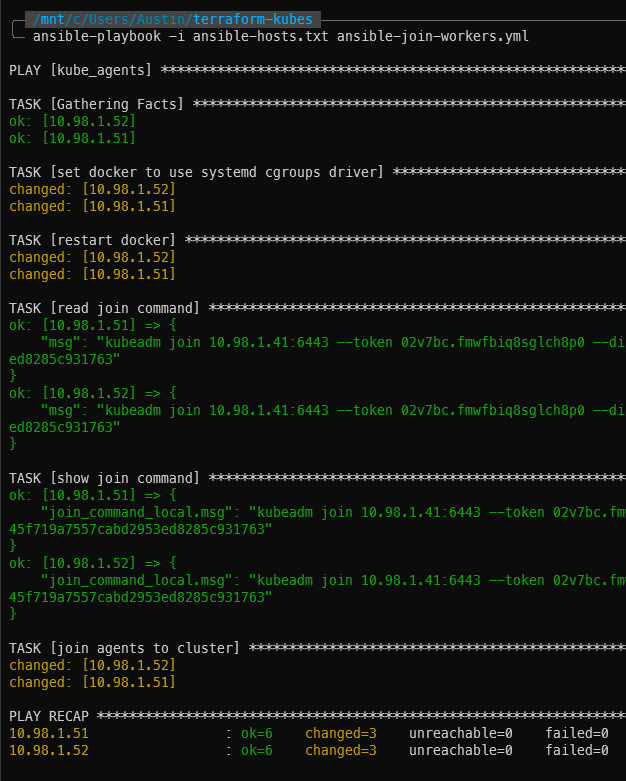
Now to join the workers/agents, our Ansible playbook will read that join_command.out file and use it to join the cluster.

ansible-join-workers.yml –

- hosts: kube_agents
  become: true
  remote_user: ubuntu
  
  vars_files:
    - ansible-vars.yml
    
  tasks:
  - name: set docker to use systemd cgroups driver
    copy:
      dest: "/etc/docker/daemon.json"
      content: |
        {
          "exec-opts": ["native.cgroupdriver=systemd"]
        }
  - name: restart docker
    service:
      name: docker
      state: restarted
    
  - name: read join command
    debug: msg={{ lookup('file', join_command_location) }}
    register: join_command_local
    
  - name: show join command
    debug:
      var: join_command_local.msg
      
  - name: join agents to cluster
    command: "{{ join_command_local.msg }}"

And to actually join:

ansible-playbook -i ansible-hosts.txt ansible-join-workers.yml
Two worker agents successfully joined to the cluster

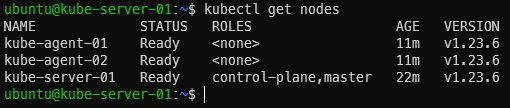
With the two worker nodes/agents joined up to the cluster, you now have a full on Kubernetes cluster up and running! Wait a few minutes, then log into the server and run kubectl get nodes to verify they are present and active (status = Ready):

kubectl get nodes
‘kubectl get nodes’ showing our nodes as ready

Kubernetes Dashboard

Everyone likes a dashboard. Kubernetes has a good one for poking/prodding around. It appears to basically be a visual representation of most (all?) of the “get information” types of command you can run with kubectl (kubectl get nodes, get pods, describe stuff, etc.).

The dashboard was installed with the cluster init script but we still need to create a service account and cluster role binding for the dashboard. These steps are from https://github.com/kubernetes/dashboard/blob/master/docs/user/access-control/creating-sample-user.md. NOTE: the docs state it is not recommended to give admin privileges to this service account. I’m still figuring out Kubernetes privileges so I’m going to proceed anyways.

Dashboard user/role creation

On the master machine, create a file called sa.yaml with the following contents:

apiVersion: v1
kind: ServiceAccount
metadata:
  name: admin-user
  namespace: kubernetes-dashboard

And another file called clusterrole.yaml:

apiVersion: rbac.authorization.k8s.io/v1
kind: ClusterRoleBinding
metadata:
  name: admin-user
roleRef:
  apiGroup: rbac.authorization.k8s.io
  kind: ClusterRole
  name: cluster-admin
subjects:
- kind: ServiceAccount
  name: admin-user
  namespace: kubernetes-dashboard

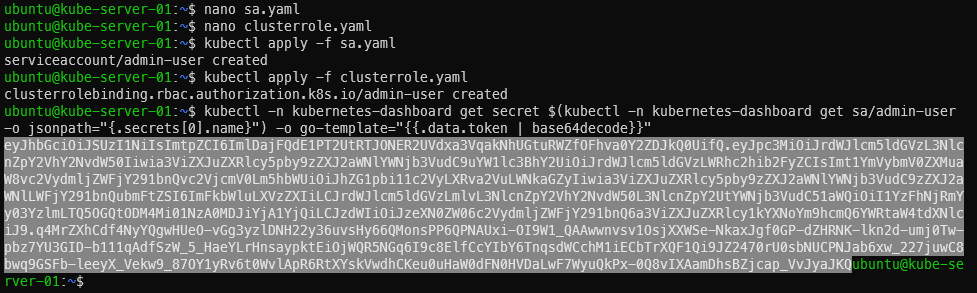
Apply both, then get the token to be used for logging in. The last command will spit out a long string. Copy it starting at ‘ey’ and ending before the username (ubuntu). In the screenshot I have highlighted which part is the token

kubectl apply -f sa.yaml
kubectl apply -f clusterrole.yaml
kubectl -n kubernetes-dashboard get secret $(kubectl -n kubernetes-dashboard get sa/admin-user -o jsonpath="{.secrets[0].name}") -o go-template="{{.data.token | base64decode}}"
Applying both templates and getting the user’s token

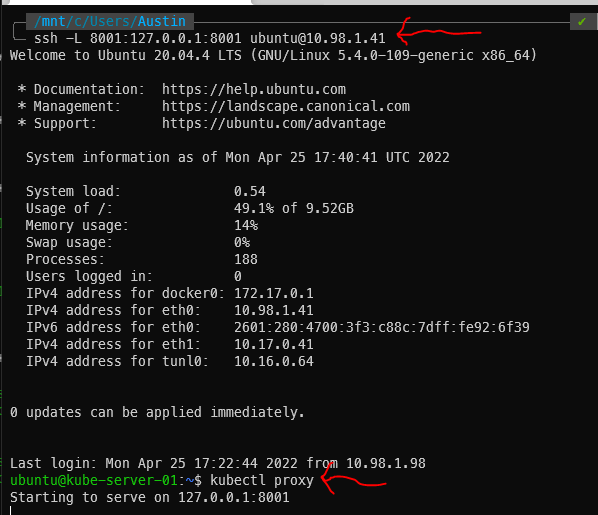
SSH Tunnel & kubectl proxy

At this point, the dashboard has been running for a while. We just can’t get to it yet. There are two distinct steps that need to happen. The first is to create a SSH tunnel between your local machine and a machine in the cluster (we will be using the master). Then, from within that SSH session, we will run kubectl proxy to expose the web services.

SSH command – the master’s IP is 10.98.1.41 in this example:

ssh -L 8001:127.0.0.1:8001 [email protected]

The above command will open what appears to be a standard SSH session but the tunnel is running as well. Now execute kubectl proxy:

Kubernetes SSH tunnel & kubectl proxy output

The Kubernetes Dashboard

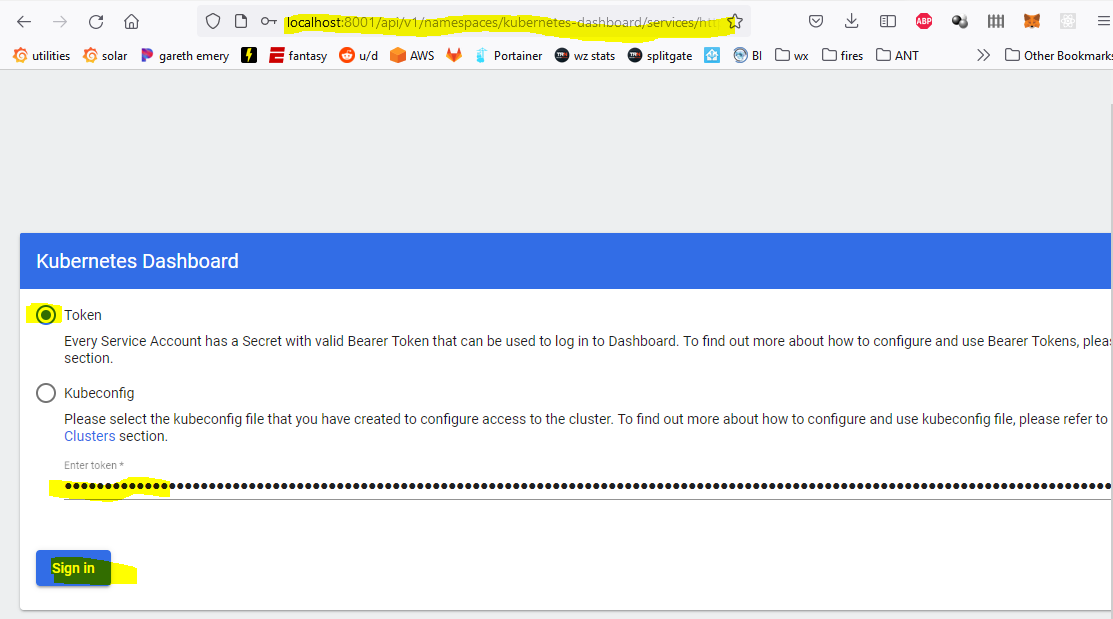
At this point, you should be able to navigate to the dashboard page from a web browser on your local machine (http://localhost:8001/api/v1/namespaces/kubernetes-dashboard/services/https:kubernetes-dashboard:/proxy/) and you’ll be prompted for a log in. Make sure the token radio button is selected and paste in that long token from earlier. It expires relatively quickly (couple hours I think) so be ready to run the token retrieval command again.

Kubernetes dashboard login with token

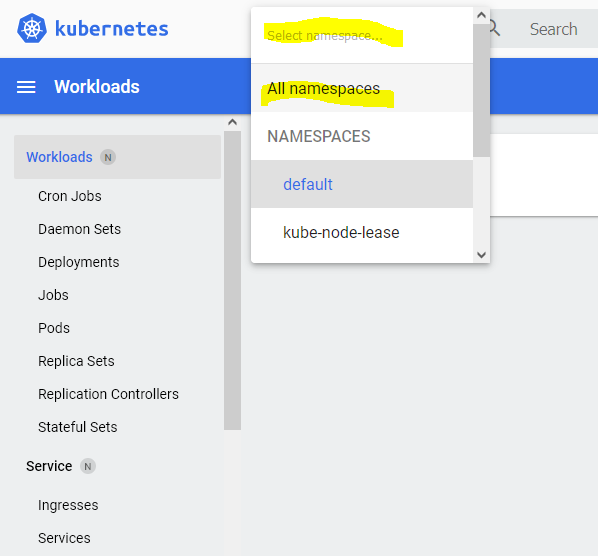
The default view is for the “default” namespace which has nothing in it at this point. Change it to All namespaces for more details:

Kubernetes dashboard all namespaces

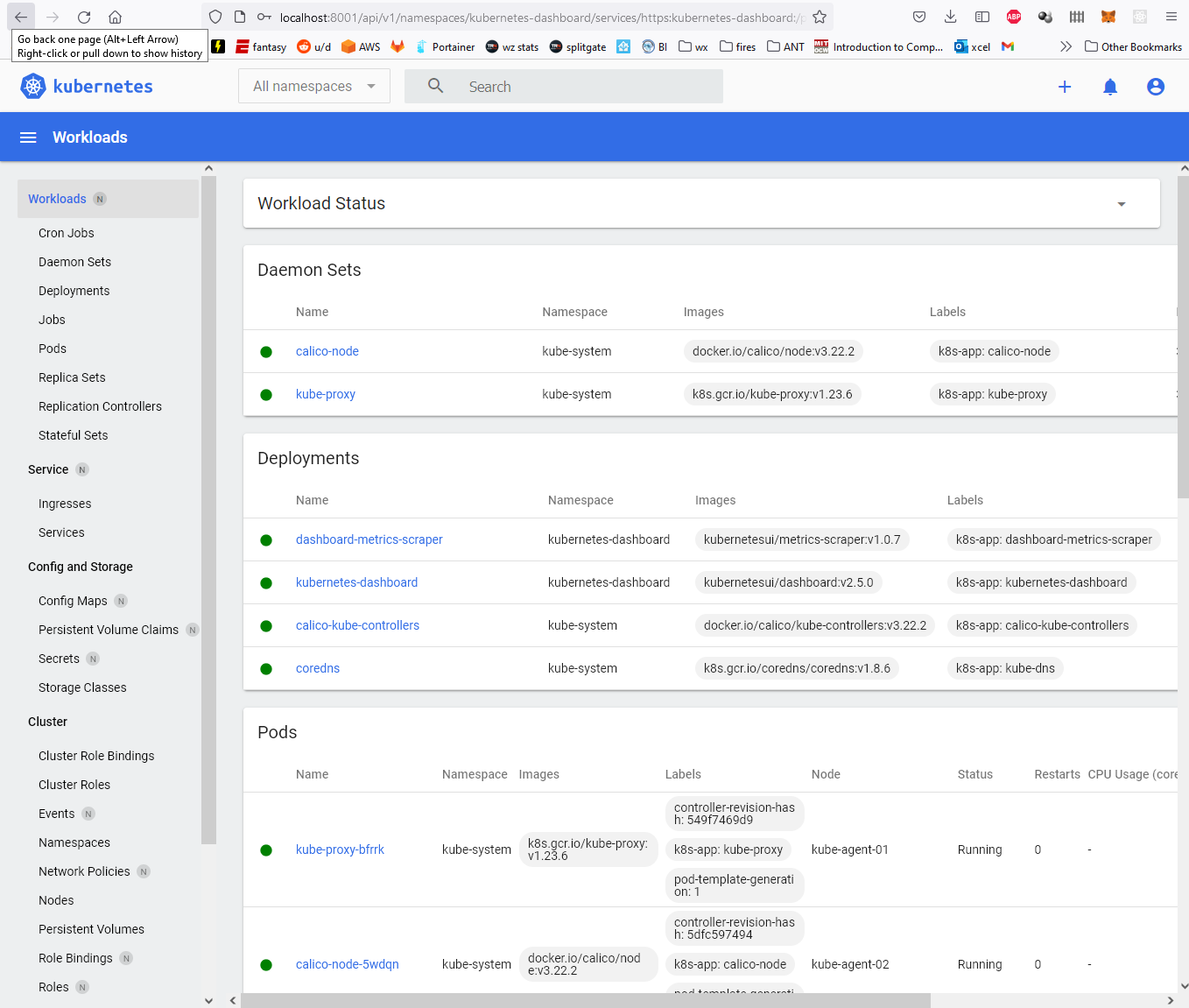
From here you can see information about everything in the cluster:

Kubernetes dashboard showing relatively default workloads

Conclusion

With this last post, we have concluded the journey from creating a Ubuntu cloud-init image in Proxmox, using Terraform to deploy Kubernetes VMs in Proxmox, all the way through deploying an actual Kubernetes cluster in Proxmox using Ansible. Hope you found this useful!

Video link coming soon.

Discussion

For discussion, either leave a comment here or if you’re a Reddit user, head on over to https://www.reddit.com/r/austinsnerdythings/comments/ubsk1i/i_made_a_tutorial_showing_how_to_deploy_a/.

References

https://kubernetes.io/blog/2019/03/15/kubernetes-setup-using-ansible-and-vagrant/

https://github.com/virtualelephant/vsphere-kubernetes

Categories
homelab Kubernetes Linux proxmox Terraform

Deploying Kubernetes VMs in Proxmox with Terraform

Background

The last post covered how to deploy virtual machines in Proxmox with Terraform. This post shows the template for deploying 4 Kubernetes virtual machines in Proxmox using Terraform.

Youtube Video Link

https://youtu.be/UXXIl421W8g

Kubernetes Proxmox Terraform Template

Without further ado, below is the template I used to create my virtual machines. The main LAN network is 10.98.1.0/24, and the Kube internal network (on its own bridge) is 10.17.0.0/24.

This template creates a Kube server, two agents, and a storage server.

Update 2022-04-26: bumped Telmate provider version to 2.9.8 from 2.7.4

terraform {
  required_providers {
    proxmox = {
      source = "telmate/proxmox"
      version = "2.9.8"
    }
  }
}

provider "proxmox" {
  pm_api_url = "https://prox-1u.home.fluffnet.net:8006/api2/json" # change this to match your own proxmox
  pm_api_token_id = [secret]
  pm_api_token_secret = [secret]
  pm_tls_insecure = true
}

resource "proxmox_vm_qemu" "kube-server" {
  count = 1
  name = "kube-server-0${count.index + 1}"
  target_node = "prox-1u"
  # thanks to Brian on YouTube for the vmid tip
  # http://www.youtube.com/channel/UCTbqi6o_0lwdekcp-D6xmWw
  vmid = "40${count.index + 1}"

  clone = "ubuntu-2004-cloudinit-template"

  agent = 1
  os_type = "cloud-init"
  cores = 2
  sockets = 1
  cpu = "host"
  memory = 4096
  scsihw = "virtio-scsi-pci"
  bootdisk = "scsi0"

  disk {
    slot = 0
    size = "10G"
    type = "scsi"
    storage = "local-zfs"
    #storage_type = "zfspool"
    iothread = 1
  }

  network {
    model = "virtio"
    bridge = "vmbr0"
  }
  
  network {
    model = "virtio"
    bridge = "vmbr17"
  }

  lifecycle {
    ignore_changes = [
      network,
    ]
  }

  ipconfig0 = "ip=10.98.1.4${count.index + 1}/24,gw=10.98.1.1"
  ipconfig1 = "ip=10.17.0.4${count.index + 1}/24"
  sshkeys = <<EOF
  ${var.ssh_key}
  EOF
}

resource "proxmox_vm_qemu" "kube-agent" {
  count = 2
  name = "kube-agent-0${count.index + 1}"
  target_node = "prox-1u"
  vmid = "50${count.index + 1}"

  clone = "ubuntu-2004-cloudinit-template"

  agent = 1
  os_type = "cloud-init"
  cores = 2
  sockets = 1
  cpu = "host"
  memory = 4096
  scsihw = "virtio-scsi-pci"
  bootdisk = "scsi0"

  disk {
    slot = 0
    size = "10G"
    type = "scsi"
    storage = "local-zfs"
    #storage_type = "zfspool"
    iothread = 1
  }

  network {
    model = "virtio"
    bridge = "vmbr0"
  }
  
  network {
    model = "virtio"
    bridge = "vmbr17"
  }

  lifecycle {
    ignore_changes = [
      network,
    ]
  }

  ipconfig0 = "ip=10.98.1.5${count.index + 1}/24,gw=10.98.1.1"
  ipconfig1 = "ip=10.17.0.5${count.index + 1}/24"
  sshkeys = <<EOF
  ${var.ssh_key}
  EOF
}

resource "proxmox_vm_qemu" "kube-storage" {
  count = 1
  name = "kube-storage-0${count.index + 1}"
  target_node = "prox-1u"
  vmid = "60${count.index + 1}"

  clone = "ubuntu-2004-cloudinit-template"

  agent = 1
  os_type = "cloud-init"
  cores = 2
  sockets = 1
  cpu = "host"
  memory = 4096
  scsihw = "virtio-scsi-pci"
  bootdisk = "scsi0"

  disk {
    slot = 0
    size = "20G"
    type = "scsi"
    storage = "local-zfs"
    #storage_type = "zfspool"
    iothread = 1
  }

  network {
    model = "virtio"
    bridge = "vmbr0"
  }
  
  network {
    model = "virtio"
    bridge = "vmbr17"
  }

  lifecycle {
    ignore_changes = [
      network,
    ]
  }

  ipconfig0 = "ip=10.98.1.6${count.index + 1}/24,gw=10.98.1.1"
  ipconfig1 = "ip=10.17.0.6${count.index + 1}/24"
  sshkeys = <<EOF
  ${var.ssh_key}
  EOF
}

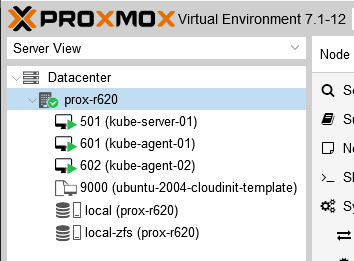
After running Terraform plan and apply, you should have 4 new VMs in your Proxmox cluster:

Proxmox showing 4 virtual machines ready for Kubernetes

Conclusion

You now have 4 VMs ready for Kubernetes installation. The next post shows how to deploy a Kubernetes cluster with Ansible.

Categories
homelab Kubernetes Linux proxmox Terraform

How to deploy VMs in Proxmox with Terraform

Background

I’d like to learn Kubernetes and DevOps. A Kubernetes cluster requires at least 3 VMs/bare metal machines. In my last post, I wrote about how to create a Ubuntu cloud-init template for Proxmox. In this post, we’ll take that template and use it to deploy a couple VMs via automation using Terraform. If you don’t have a template, you need one before proceeding.

Overview

  1. Install Terraform
  2. Determine authentication method for Terraform to interact with Proxmox (user/pass vs API keys)
  3. Terraform basic initialization and provider installation
  4. Develop Terraform plan
  5. Terraform plan
  6. Run Terraform plan and watch the VMs appear!

Youtube Video Link

If you prefer video versions to follow along, please head on over to https://youtu.be/UXXIl421W8g for a live-action video of me deploying virtual machines in Proxmox using Terraform and why we’re running each command.

#1 – Install Terraform

curl -fsSL https://apt.releases.hashicorp.com/gpg | sudo apt-key add -
sudo apt-add-repository "deb [arch=$(dpkg --print-architecture)] https://apt.releases.hashicorp.com $(lsb_release -cs) main"
sudo apt update
sudo apt install terraform

#2 – Determine Authentication Method (use API keys)

You have two options here:

  1. Username/password – you can use the existing default root user and root password here to make things easy… or
  2. API keys – this involves setting up a new user, giving that new user the required permissions, and then setting up API keys so that user doesn’t have to type in a password to perform actions

I went with the API key method since it is not desirable to have your root password sitting in Terraform files (even as an environment variable isn’t a great idea). I didn’t really know what I was doing and I basically gave the new user full admin permissions anyways. Should I lock it down? Surely. Do I know what the minimum required permissions are to do so? Nope. If someone in the comments or on Reddit could enlighten me, I’d really appreciate it!

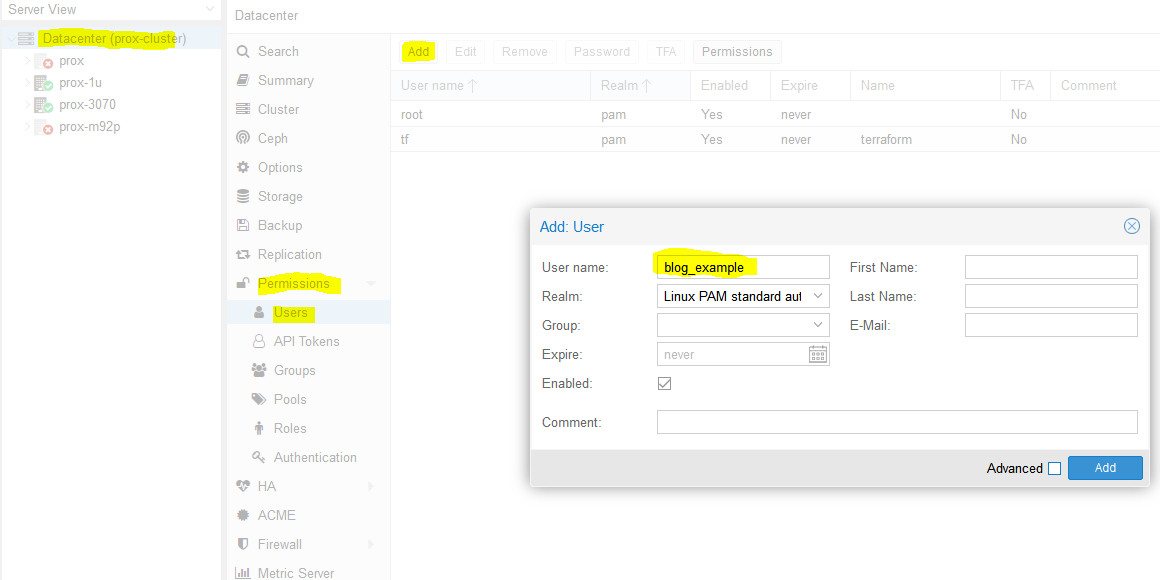
So we need to create a new user. We’ll name it ‘blog_example’. To add a new user go to Datacenter in the left tab, then Permissions -> Users -> Click add, name the user and click add.

screenshot showing how to add a user in proxmox
Adding ‘blog_example’ user to my proxmox datacenter (cluster)

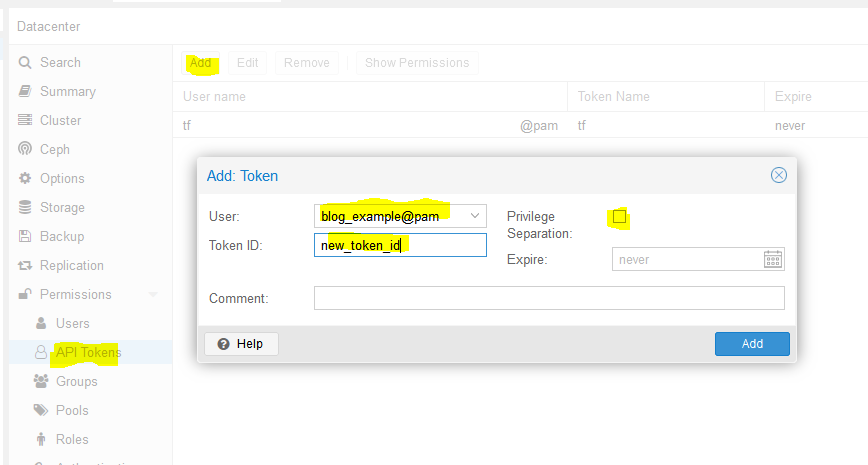
Next, we need to add API tokens. Click API tokens below users in the permissions category and click add. Select the user you just created and give the token an ID, and uncheck privilege separation (which means we want the token to have the same permissions as the user):

Adding a new API token for user ‘blog_example’

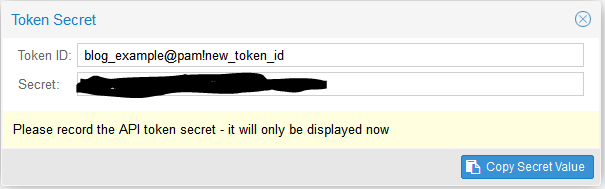
When you click Add it will show you the key. Save this key. It will never be displayed again!

Super secret API key secret

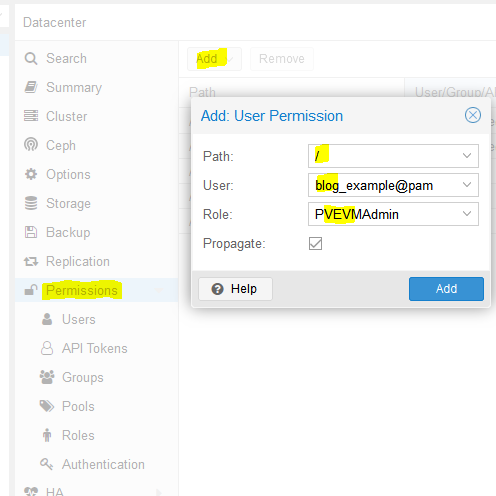
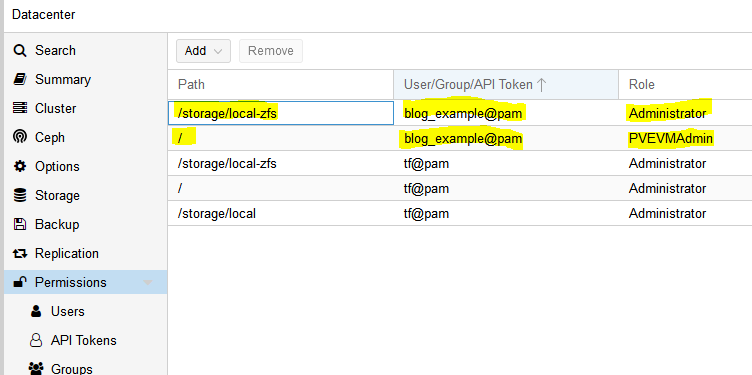
Next we need to add a role to the new user. Permissions -> Add -> Path = ‘/’, User is the one you just made, role = ‘PVEVMAdmin’. This gives the user (and associated API token!) rights to all nodes (the / for path) to do VMAdmin activities:

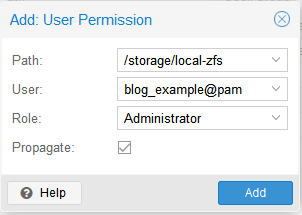
You also need to add permissions to the storage used by the VMs you want to deploy (both from and to), for me this is /storage/local-zfs (might be /storage/local-lvm for you). Add that too in the path section. Use Admin for the role here because the user also needs the ability to allocate space in the datastore (you could use PVEVMAdmin + a datastore role but I haven’t dove into which one yet):

At this point we are done with the permissions:

It is time to turn to Terraform.

3 – Terraform basic information and provider installation

Terraform has three main stages: init, plan, and apply. We will start with describing the plans, which can be thought of a a type of configuration file for what you want to do. Plans are files stored in directories. Make a new directory (terraform-blog), and create two files: main.tf and vars.tf:

cd ~
mkdir terraform-blog && cd terraform-blog
touch main.tf vars.tf

The two files are hopefully reasonably named. The main content will be in main.tf and we will put a few variables in vars.tf. Everything could go in main.tf but it is a good practice to start splitting things out early. I actually don’t have as much in vars.tf as I should but we all gotta start somewhere

Ok so in main.tf let’s add the bare minimum. We need to tell Terraform to use a provider, which is the term they use for the connector to the entity Terraform will be interacting with. Since we are using Proxmox, we need to use a Proxmox provider. This is actually super easy – we just need to specify the name and version and Terraform goes out and grabs it from github and installs it. I used the Telmate Proxmox provider.

main.tf:

terraform {
  required_providers {
    proxmox = {
      source = "telmate/proxmox"
      version = "2.7.4"
    }
  }
}

Save the file. Now we’ll initialize Terraform with our barebones plan (terraform init), which will force it to go out and grab the provider. If all goes well, we will be informed that the provider was installed and that Terraform has been initialized. Terraform is also really nice in that it tells you the next step towards the bottom of the output (“try running ‘terraform plan’ next”).

austin@EARTH:/mnt/c/Users/Austin/terraform-blog$ terraform init

Initializing the backend...

Initializing provider plugins...
- Finding telmate/proxmox versions matching "2.7.4"...
- Installing telmate/proxmox v2.7.4...
- Installed telmate/proxmox v2.7.4 (self-signed, key ID A9EBBE091B35AFCE)

Partner and community providers are signed by their developers.
If you'd like to know more about provider signing, you can read about it here:
https://www.terraform.io/docs/cli/plugins/signing.html

Terraform has created a lock file .terraform.lock.hcl to record the provider
selections it made above. Include this file in your version control repository
so that Terraform can guarantee to make the same selections by default when
you run "terraform init" in the future.

Terraform has been successfully initialized!

You may now begin working with Terraform. Try running "terraform plan" to see
any changes that are required for your infrastructure. All Terraform commands
should now work.

If you ever set or change modules or backend configuration for Terraform,
rerun this command to reinitialize your working directory. If you forget, other
commands will detect it and remind you to do so if necessary.

4 – Develop Terraform plan

Alright with the provider installed, it is time to use it to deploy a VM. We will use the template we created in the last post (How to create a Proxmox Ubuntu cloud-init image). Alter your main.tf file to be the following. I break it down inside the file with comments

terraform {
  required_providers {
    proxmox = {
      source = "telmate/proxmox"
      version = "2.7.4"
    }
  }
}

provider "proxmox" {
  # url is the hostname (FQDN if you have one) for the proxmox host you'd like to connect to to issue the commands. my proxmox host is 'prox-1u'. Add /api2/json at the end for the API
  pm_api_url = "https://prox-1u:8006/api2/json"

  # api token id is in the form of: <username>@pam!<tokenId>
  pm_api_token_id = "blog_example@pam!new_token_id"

  # this is the full secret wrapped in quotes. don't worry, I've already deleted this from my proxmox cluster by the time you read this post
  pm_api_token_secret = "9ec8e608-d834-4ce5-91d2-15dd59f9a8c1"

  # leave tls_insecure set to true unless you have your proxmox SSL certificate situation fully sorted out (if you do, you will know)
  pm_tls_insecure = true
}

# resource is formatted to be "[type]" "[entity_name]" so in this case
# we are looking to create a proxmox_vm_qemu entity named test_server
resource "proxmox_vm_qemu" "test_server" {
  count = 1 # just want 1 for now, set to 0 and apply to destroy VM
  name = "test-vm-${count.index + 1}" #count.index starts at 0, so + 1 means this VM will be named test-vm-1 in proxmox

  # this now reaches out to the vars file. I could've also used this var above in the pm_api_url setting but wanted to spell it out up there. target_node is different than api_url. target_node is which node hosts the template and thus also which node will host the new VM. it can be different than the host you use to communicate with the API. the variable contains the contents "prox-1u"
  target_node = var.proxmox_host

  # another variable with contents "ubuntu-2004-cloudinit-template"
  clone = var.template_name

  # basic VM settings here. agent refers to guest agent
  agent = 1
  os_type = "cloud-init"
  cores = 2
  sockets = 1
  cpu = "host"
  memory = 2048
  scsihw = "virtio-scsi-pci"
  bootdisk = "scsi0"

  disk {
    slot = 0
    # set disk size here. leave it small for testing because expanding the disk takes time.
    size = "10G"
    type = "scsi"
    storage = "local-zfs"
    iothread = 1
  }
  
  # if you want two NICs, just copy this whole network section and duplicate it
  network {
    model = "virtio"
    bridge = "vmbr0"
  }

  # not sure exactly what this is for. presumably something about MAC addresses and ignore network changes during the life of the VM
  lifecycle {
    ignore_changes = [
      network,
    ]
  }
  
  # the ${count.index + 1} thing appends text to the end of the ip address
  # in this case, since we are only adding a single VM, the IP will
  # be 10.98.1.91 since count.index starts at 0. this is how you can create
  # multiple VMs and have an IP assigned to each (.91, .92, .93, etc.)

  ipconfig0 = "ip=10.98.1.9${count.index + 1}/24,gw=10.98.1.1"
  
  # sshkeys set using variables. the variable contains the text of the key.
  sshkeys = <<EOF
  ${var.ssh_key}
  EOF
}

There is a good amount going on in here. Hopefully the embedded comments explain everything. If not, let me know in the comments or on Reddit (u/Nerdy-Austin).

Now for the vars.tf file. This is a bit easier to understand. Just declare a variable, give it a name, and a default value. That’s all I know at this point and it works.

variable "ssh_key" {
  default = "ssh-rsa AAAAB3NzaC1yc2EAAAADAQABAAABAQDcwZAOfqf6E6p8IkrurF2vR3NccPbMlXFPaFe2+Eh/8QnQCJVTL6PKduXjXynuLziC9cubXIDzQA+4OpFYUV2u0fAkXLOXRIwgEmOrnsGAqJTqIsMC3XwGRhR9M84c4XPAX5sYpOsvZX/qwFE95GAdExCUkS3H39rpmSCnZG9AY4nPsVRlIIDP+/6YSy9KWp2YVYe5bDaMKRtwKSq3EOUhl3Mm8Ykzd35Z0Cysgm2hR2poN+EB7GD67fyi+6ohpdJHVhinHi7cQI4DUp+37nVZG4ofYFL9yRdULlHcFa9MocESvFVlVW0FCvwFKXDty6askpg9yf4FnM0OSbhgqXzD austin@EARTH"
}

variable "proxmox_host" {
	default = "prox-1u"
}

variable "template_name" {
	default = "ubuntu-2004-cloudinit-template"
}

5 – Terraform plan (official term for “what will Terraform do next”)

Now with the .tf files completed, we can run the plan (terraform plan). We defined a count=1 resource, so we would expect Terraform to create a single VM. Let’s have Terraform run through the plan and tell us what it intends to do. It tells us a lot.

austin@EARTH:/mnt/c/Users/Austin/terraform-blog$ terraform plan

Terraform used the selected providers to generate the following execution plan. Resource actions
are indicated with the following symbols:
  + create

Terraform will perform the following actions:

  # proxmox_vm_qemu.test_server[0] will be created
  + resource "proxmox_vm_qemu" "test_server" {
      + additional_wait           = 15
      + agent                     = 1
      + balloon                   = 0
      + bios                      = "seabios"
      + boot                      = "cdn"
      + bootdisk                  = "scsi0"
      + clone                     = "ubuntu-2004-cloudinit-template"
      + clone_wait                = 15
      + cores                     = 2
      + cpu                       = "host"
      + default_ipv4_address      = (known after apply)
      + define_connection_info    = true
      + force_create              = false
      + full_clone                = true
      + guest_agent_ready_timeout = 600
      + hotplug                   = "network,disk,usb"
      + id                        = (known after apply)
      + ipconfig0                 = "ip=10.98.1.91/24,gw=10.98.1.1"
      + kvm                       = true
      + memory                    = 2048
      + name                      = "test-vm-1"
      + nameserver                = (known after apply)
      + numa                      = false
      + onboot                    = true
      + os_type                   = "cloud-init"
      + preprovision              = true
      + reboot_required           = (known after apply)
      + scsihw                    = "virtio-scsi-pci"
      + searchdomain              = (known after apply)
      + sockets                   = 1
      + ssh_host                  = (known after apply)
      + ssh_port                  = (known after apply)
      + sshkeys                   = <<-EOT
              ssh-rsa AAAAB3NzaC1yc2EAAAADAQABAAABAQDcwZAOfqf6E6p8IkrurF2vR3NccPbMlXFPaFe2+Eh/8QnQCJVTL6PKduXjXynuLziC9cubXIDzQA+4OpFYUV2u0fAkXLOXRIwgEmOrnsGAqJTqIsMC3XwGRhR9M84c4XPAX5sYpOsvZX/qwFE95GAdExCUkS3H39rpmSCnZG9AY4nPsVRlIIDP+/6YSy9KWp2YVYe5bDaMKRtwKSq3EOUhl3Mm8Ykzd35Z0Cysgm2hR2poN+EB7GD67fyi+6ohpdJHVhinHi7cQI4DUp+37nVZG4ofYFL9yRdULlHcFa9MocESvFVlVW0FCvwFKXDty6askpg9yf4FnM0OSbhgqXzD austin@EARTH
        EOT
      + target_node               = "prox-1u"
      + unused_disk               = (known after apply)
      + vcpus                     = 0
      + vlan                      = -1
      + vmid                      = (known after apply)

      + disk {
          + backup       = 0
          + cache        = "none"
          + file         = (known after apply)
          + format       = (known after apply)
          + iothread     = 1
          + mbps         = 0
          + mbps_rd      = 0
          + mbps_rd_max  = 0
          + mbps_wr      = 0
          + mbps_wr_max  = 0
          + media        = (known after apply)
          + replicate    = 0
          + size         = "10G"
          + slot         = 0
          + ssd          = 0
          + storage      = "local-zfs"
          + storage_type = (known after apply)
          + type         = "scsi"
          + volume       = (known after apply)
        }

      + network {
          + bridge    = "vmbr0"
          + firewall  = false
          + link_down = false
          + macaddr   = (known after apply)
          + model     = "virtio"
          + queues    = (known after apply)
          + rate      = (known after apply)
          + tag       = -1
        }
    }

Plan: 1 to add, 0 to change, 0 to destroy.

────────────────────────────────────────────────────────────────────────────────────────────────

Note: You didn't use the -out option to save this plan, so Terraform can't guarantee to take
exactly these actions if you run "terraform apply" now.

You can see the output of the planning phase of Terraform. It is telling us it will create proxmox_vm_qemu.test_server[0] with a list of parameters. You can double-check the IP address here, as well as the rest of the basic settings. At the bottom is the summary – “Plan: 1 to add, 0 to change, 0 to destroy.” Also note that it tells us again what step to run next – “terraform apply”.

6 – Execute the Terraform plan and watch the VMs appear!

With the summary stating what we want, we can now apply the plan (terraform apply). Note that it prompts you to type in ‘yes’ to apply the changes after it determines what the changes are. It typically takes 1m15s +/- 15s for my VMs to get created.

If all goes well, you will be informed that 1 resource was added!

Command and full output:

austin@EARTH:/mnt/c/Users/Austin/terraform-blog$ terraform apply

Terraform used the selected providers to generate the following execution plan. Resource actions are indicated with the following symbols:
  + create

Terraform will perform the following actions:

  # proxmox_vm_qemu.test_server[0] will be created
  + resource "proxmox_vm_qemu" "test_server" {
      + additional_wait           = 15
      + agent                     = 1
      + balloon                   = 0
      + bios                      = "seabios"
      + boot                      = "cdn"
      + bootdisk                  = "scsi0"
      + clone                     = "ubuntu-2004-cloudinit-template"
      + clone_wait                = 15
      + cores                     = 2
      + cpu                       = "host"
      + default_ipv4_address      = (known after apply)
      + define_connection_info    = true
      + force_create              = false
      + full_clone                = true
      + guest_agent_ready_timeout = 600
      + hotplug                   = "network,disk,usb"
      + id                        = (known after apply)
      + ipconfig0                 = "ip=10.98.1.91/24,gw=10.98.1.1"
      + kvm                       = true
      + memory                    = 2048
      + name                      = "test-vm-1"
      + nameserver                = (known after apply)
      + numa                      = false
      + onboot                    = true
      + os_type                   = "cloud-init"
      + preprovision              = true
      + reboot_required           = (known after apply)
      + scsihw                    = "virtio-scsi-pci"
      + searchdomain              = (known after apply)
      + sockets                   = 1
      + ssh_host                  = (known after apply)
      + ssh_port                  = (known after apply)
      + sshkeys                   = <<-EOT
              ssh-rsa AAAAB3NzaC1yc2EAAAADAQABAAABAQDcwZAOfqf6E6p8IkrurF2vR3NccPbMlXFPaFe2+Eh/8QnQCJVTL6PKduXjXynuLziC9cubXIDzQA+4OpFYUV2u0fAkXLOXRIwgEmOrnsGAqJTqIsMC3XwGRhR9M84c4XPAX5sYpOsvZX/qwFE95GAdExCUkS3H39rpmSCnZG9AY4nPsVRlIIDP+/6YSy9KWp2YVYe5bDaMKRtwKSq3EOUhl3Mm8Ykzd35Z0Cysgm2hR2poN+EB7GD67fyi+6ohpdJHVhinHi7cQI4DUp+37nVZG4ofYFL9yRdULlHcFa9MocESvFVlVW0FCvwFKXDty6askpg9yf4FnM0OSbhgqXzD austin@EARTH
        EOT
      + target_node               = "prox-1u"
      + unused_disk               = (known after apply)
      + vcpus                     = 0
      + vlan                      = -1
      + vmid                      = (known after apply)

      + disk {
          + backup       = 0
          + cache        = "none"
          + file         = (known after apply)
          + format       = (known after apply)
          + iothread     = 1
          + mbps         = 0
          + mbps_rd      = 0
          + mbps_rd_max  = 0
          + mbps_wr      = 0
          + mbps_wr_max  = 0
          + media        = (known after apply)
          + replicate    = 0
          + size         = "10G"
          + slot         = 0
          + ssd          = 0
          + storage      = "local-zfs"
          + storage_type = (known after apply)
          + type         = "scsi"
          + volume       = (known after apply)
        }

      + network {
          + bridge    = "vmbr0"
          + firewall  = false
          + link_down = false
          + macaddr   = (known after apply)
          + model     = "virtio"
          + queues    = (known after apply)
          + rate      = (known after apply)
          + tag       = -1
        }
    }

Plan: 1 to add, 0 to change, 0 to destroy.

Do you want to perform these actions?
  Terraform will perform the actions described above.
  Only 'yes' will be accepted to approve.

  Enter a value: yes

proxmox_vm_qemu.test_server[0]: Creating...
proxmox_vm_qemu.test_server[0]: Still creating... [10s elapsed]
proxmox_vm_qemu.test_server[0]: Still creating... [20s elapsed]
proxmox_vm_qemu.test_server[0]: Still creating... [30s elapsed]
proxmox_vm_qemu.test_server[0]: Still creating... [40s elapsed]
proxmox_vm_qemu.test_server[0]: Still creating... [50s elapsed]
proxmox_vm_qemu.test_server[0]: Still creating... [1m0s elapsed]
proxmox_vm_qemu.test_server[0]: Creation complete after 1m9s [id=prox-1u/qemu/142]

Apply complete! Resources: 1 added, 0 changed, 0 destroyed.

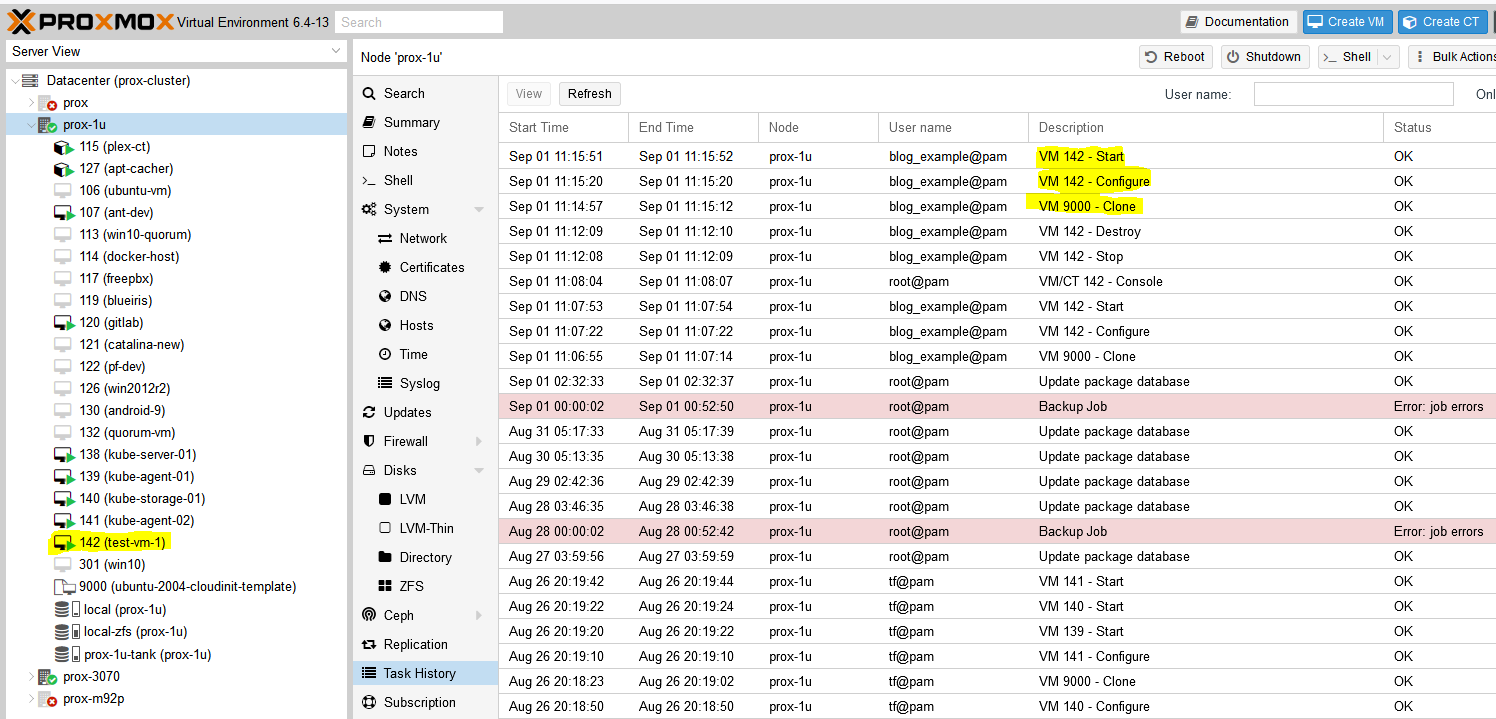
Now go check Proxmox and see if your VM was created:

Successfully added a virtual machine (VM) to Proxmox with Terraform

Success! You should now be able to SSH into the new VM with the key you already provided (note: the username will be ‘ubuntu’, not whatever you had set in your key).

Last – Removing the test VM

I just set the count to 0 for the resource in the main.tf file and apply and the VM is stopped and destroyed.

Conclusion

This felt like a quick-n-dirty tutorial for how to use Terraform to deploy virtual machines in Proxmox but looking back, there is a decent amount of detail. It took me quite a while to work through permission issues, hostnames being invalid (turns out you can’t have underscores (_) in hostnames, duh, that took an hour to find), assigning roles to users vs the associated API keys, etc. but I’m glad I worked through everything and can pass it along. Check back soon for my next post on using Terraform to deploy a full set of Kubernetes machines to a Proxmox cluster (and thrilling sequel to that post, Using Ansible to bootstrap a Kubernetes Cluster)!

References

Categories
homelab Kubernetes Linux proxmox

How to create a Proxmox Ubuntu cloud-init image

Background for why I wanted to make a Proxmox Ubuntu cloud-init image

I have recently ventured down the path of attempting to learn CI/CD concepts. I have tried docker multiple times and haven’t really enjoyed the nuances any of the times. To me, LXC/LXD containers are far easier to understand than Docker when coming from a ‘one VM per service’ background. LXC/LXD containers can be assigned IP addresses (or get them from DHCP) and otherwise behave basically exactly like a VM from a networking perspective. Docker’s networking model is quite a bit more nuanced. Lots of people say it’s easier, but having everything run on ‘localhost:[high number port]’ doesn’t work well when you’ve got lots of services, unless you do some reverse proxying, like with Traefik or similar. Which is another configuration step.

It is so much easier to just have a LXC get an IP via DHCP and then it’s accessible from hostname right off the bat (I use pfSense for DHCP/DNS – all DHCP leases are entered right into DNS). Regardless, I know Kubernetes is the new hotness so I figured I need to learn it. Every tutorial says you need a master and at least two worker nodes. No sense making three separate virtual machines – let’s use the magic of virtualization and clone some images! I plan on using Terraform to deploy the virtual machines for my Kubernetes cluster (as in, I’ve already used this Proxmox Ubuntu cloud-init image to make my own Kubernetes nodes but haven’t documented it yet).

Overview

The quick summary for this tutorial is:

  1. Download a base Ubuntu cloud image
  2. Install some packages into the image
  3. Create a Proxmox VM using the image
  4. Convert it to a template
  5. Clone the template into a full VM and set some parameters
  6. Automate it so it runs on a regular basis (extra credit)?
  7. ???
  8. Profit!

Youtube Video Link

If you prefer video versions to follow along, please head on over to https://youtu.be/1sPG3mFVafE for a live action video of me creating the Proxmox Ubuntu cloud-init image and why we’re running each command.

#1 – Downloading the base Ubuntu image

Luckily, Ubuntu (my preferred distro, guessing others do the same) provides base images that are updated on a regular basis – https://cloud-images.ubuntu.com/. We are interested in the “current” release of Ubuntu 20.04 Focal, which is the current Long Term Support version. Further, since Proxmox uses KVM, we will be pulling that image:

wget https://cloud-images.ubuntu.com/focal/current/focal-server-cloudimg-amd64.img

#2 – Install packages

It took me quite a while into my Terraform debugging process to determine that qemu-guest-agent wasn’t included in the cloud-init image. Why it isn’t, I have no idea. Luckily there is a very cool tool that I just learned about that enables installing packages directly into a image. The tool is called virt-customize and it comes in the libguestfs-tools package (“libguestfs is a set of tools for accessing and modifying virtual machine (VM) disk images” – https://www.libguestfs.org/).

Install the tools:

sudo apt update -y && sudo apt install libguestfs-tools -y

Then install qemu-guest-agent into the newly downloaded image:

sudo virt-customize -a focal-server-cloudimg-amd64.img --install qemu-guest-agent

At this point you can presumably install whatever else you want into the image but I haven’t tested installing other packages. qemu-guest-agent was what I needed to get the VM recognized by Terraform and accessible.

Update 2021-12-30 – it is possible to inject the SSH keys into the cloud image itself before turning it into a template and VM. You need to create a user first and the necessary folders:

# not quite working yet. skip this and continue
#sudo virt-customize -a focal-server-cloudimg-amd64.img --run-command 'useradd austin'
#sudo virt-customize -a focal-server-cloudimg-amd64.img --run-command 'mkdir -p /home/austin/.ssh'
#sudo virt-customize -a focal-server-cloudimg-amd64.img --ssh-inject austin:file:/home/austin/.ssh/id_rsa.pub
#sudo virt-customize -a focal-server-cloudimg-amd64.img --run-command 'chown -R austin:austin /home/austin'

#3 – Create a Proxmox virtual machine using the newly modified image

The commands here should be relatively self explanatory but in general we are creating a VM (VMID=9000, basically every other resource I saw used this ID so we will too) with basic resources (2 cores, 2048MB), assigning networking to a virtio adapter on vmbr0, importing the image to storage (your storage here will be different if you’re not using ZFS, probably either ‘local’ or ‘local-lvm’), setting disk 0 to use the image, setting boot drive to disk, setting the cloud init stuff to ide2 (which is apparently appears as a CD-ROM to the VM, at least upon inital boot), and adding a virtual serial port. I had only used qm to force stop VMs before this but it’s pretty useful.

sudo qm create 9000 --name "ubuntu-2004-cloudinit-template" --memory 2048 --cores 2 --net0 virtio,bridge=vmbr0
sudo qm importdisk 9000 focal-server-cloudimg-amd64.img local-zfs
sudo qm set 9000 --scsihw virtio-scsi-pci --scsi0 local-zfs:vm-9000-disk-0
sudo qm set 9000 --boot c --bootdisk scsi0
sudo qm set 9000 --ide2 local-zfs:cloudinit
sudo qm set 9000 --serial0 socket --vga serial0
sudo qm set 9000 --agent enabled=1

You can start the VM up at this point if you’d like and make any other changes you want because the next step is converting it to a template. If you do boot it, I will be completely honest I have no idea how to log into it. I actually just googled this because I don’t want to leave you without an answer – looks like you can use the same virt-customize we used before to set a root password according to stackoverflow (https://stackoverflow.com/questions/29137679/login-credentials-of-ubuntu-cloud-server-image). Not going to put that into a command window here because cloud-init is really meant for public/private key authentication (see post here for a quick SSH tutorial).

#4 – Convert VM to a template

Ok if you made any changes, shut down the VM. If you didn’t boot the VM, that’s perfectly fine also. We need to convert it to a template:

sudo qm template 9000

And now we have a functioning template!

screenshot of proxmox ui showing ubuntu 20.04 cloud-init template

#5 – Clone the template into a full VM and set some parameters

From this point you can clone the template as much as you want. But, each time you do so it makes sense to set some parameters, namely the SSH keys present in the VM as well as the IP address for the main interface. You could also add the SSH keys with virt-customize but I like doing it here.

First, clone the VM (here we are cloning the template with ID 9000 to a new VM with ID 999):

sudo qm clone 9000 999 --name test-clone-cloud-init

Next, set the SSH keys and IP address:

sudo qm set 999 --sshkey ~/.ssh/id_rsa.pub
sudo qm set 999 --ipconfig0 ip=10.98.1.96/24,gw=10.98.1.1

It’s now ready to start up!

sudo qm start 999

You should be able to log in without any problems (after trusting the SSH fingerprint). Note that the username is ‘ubuntu’, not whatever the username is for the key you provided.

ssh [email protected]

Once you’re happy with how things worked, you can stop the VM and clean up the resources:

sudo qm stop 999 && sudo qm destroy 999
rm focal-server-cloudimg-amd64.img

#6 – automating the process

I have not done so yet, but if you create VMs on a somewhat regular basis, it wouldn’t be hard to stick all of the above into a simple shell script (update 2022-04-19: simple shell script below) and run it via cron on a weekly basis or whatever frequency you prefer. I can’t tell you how many times I make a new VM from whatever .iso I downloaded and the first task is apt upgrade taking forever to run (‘sudo apt update’ –> “176 packages can be upgraded”). Having a nice template always ready to go would solve that issue and would frankly save me a ton of time.

#6.5 – Shell script to create template

# installing libguestfs-tools only required once, prior to first run
sudo apt update -y
sudo apt install libguestfs-tools -y

# remove existing image in case last execution did not complete successfully
rm focal-server-cloudimg-amd64.img
wget https://cloud-images.ubuntu.com/focal/current/focal-server-cloudimg-amd64.img
sudo virt-customize -a focal-server-cloudimg-amd64.img --install qemu-guest-agent
sudo qm create 9000 --name "ubuntu-2004-cloudinit-template" --memory 2048 --cores 2 --net0 virtio,bridge=vmbr0
sudo qm importdisk 9000 focal-server-cloudimg-amd64.img local-zfs
sudo qm set 9000 --scsihw virtio-scsi-pci --scsi0 local-zfs:vm-9000-disk-0
sudo qm set 9000 --boot c --bootdisk scsi0
sudo qm set 9000 --ide2 local-zfs:cloudinit
sudo qm set 9000 --serial0 socket --vga serial0
sudo qm set 9000 --agent enabled=1
sudo qm template 9000
rm focal-server-cloudimg-amd64.img
echo "next up, clone VM, then expand the disk"
echo "you also still need to copy ssh keys to the newly cloned VM"

#7-8 – Using this template with Terraform to automate VM creation

Next post – How to deploy VMs in Proxmox with Terraform

References

https://matthewkalnins.com/posts/home-lab-setup-part-1-proxmox-cloud-init/
https://registry.terraform.io/modules/sdhibit/cloud-init-vm/proxmox/latest/examples/ubuntu_single_vm

My original notes

https://matthewkalnins.com/posts/home-lab-setup-part-1-proxmox-cloud-init/
https://registry.terraform.io/modules/sdhibit/cloud-init-vm/proxmox/latest/examples/ubuntu_single_vm

# create cloud image VM
wget https://cloud-images.ubuntu.com/focal/20210824/focal-server-cloudimg-amd64.img
sudo qm create 9000 --name "ubuntu-2004-cloudinit-template" --memory 2048 --cores 2 --net0 virtio,bridge=vmbr0

# to install qemu-guest-agent or whatever into the guest image
#sudo apt-get install libguestfs-tools
#virt-customize -a focal-server-cloudimg-amd64.img --install qemu-guest-agent
sudo qm importdisk 9000 focal-server-cloudimg-amd64.img local-zfs
sudo qm set 9000 --scsihw virtio-scsi-pci --scsi0 local-zfs:vm-9000-disk-0
sudo qm set 9000 --boot c --bootdisk scsi0
sudo qm set 9000 --ide2 local-zfs:cloudinit
sudo qm set 9000 --serial0 socket --vga serial0
sudo qm template 9000

# clone cloud image to new VM
sudo qm clone 9000 999 --name test-clone-cloud-init
sudo qm set 999 --sshkey ~/.ssh/id_rsa.pub
sudo qm set 999 --ipconfig0 ip=10.98.1.96/24,gw=10.98.1.1
sudo qm start 999
  
# remove known host because SSH key changed
ssh-keygen -f "/home/austin/.ssh/known_hosts" -R "10.98.1.96"

# ssh in
ssh -i ~/.ssh/id_rsa [email protected]

# stop and destroy VM
sudo qm stop 999 && sudo qm destroy 999